MQTT protocol
1. Simple Connector page
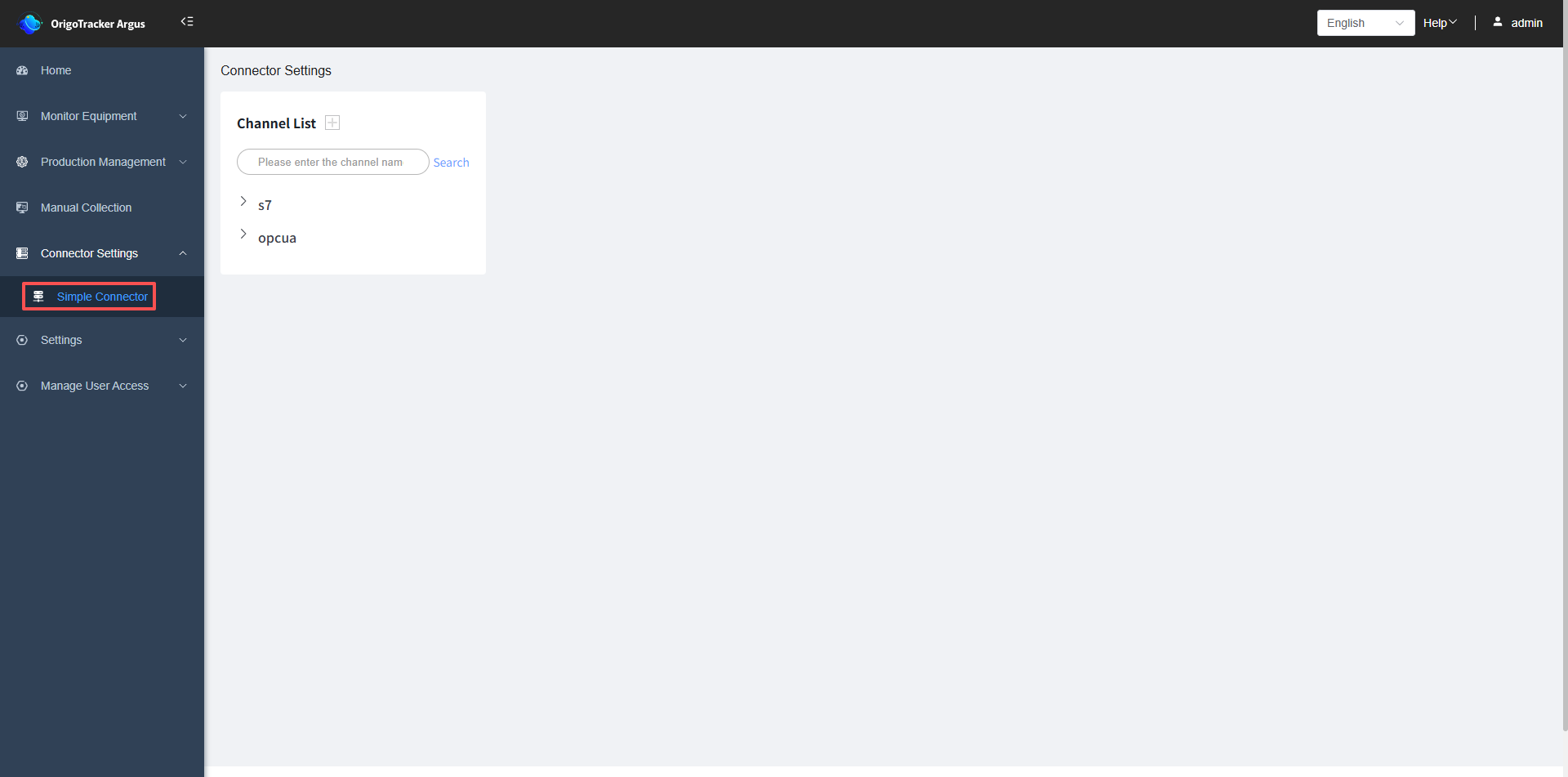 Click the plus sign next to the Channel List, add a MQTT protocol.
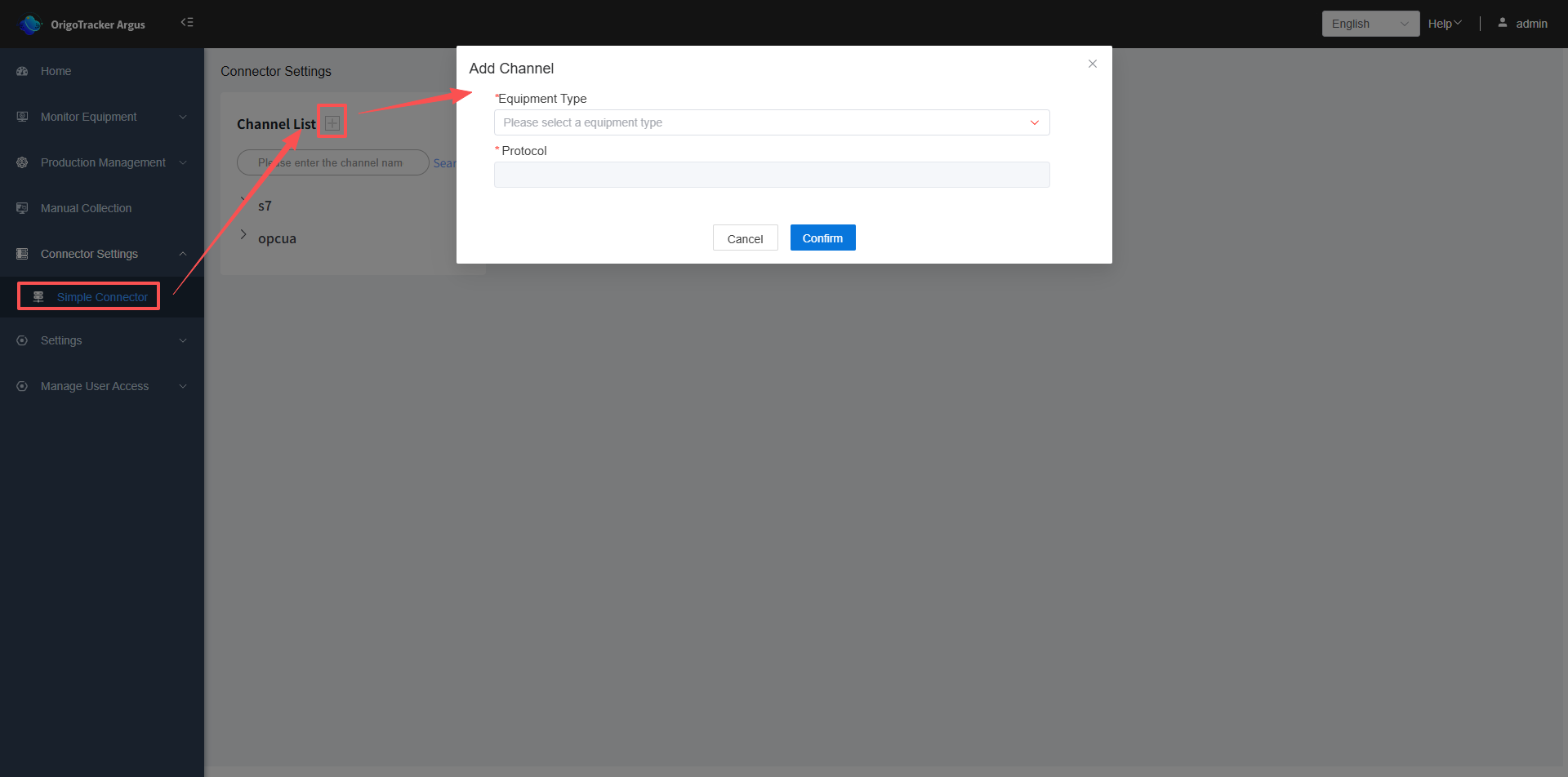
| Field | Description |
|---|---|
| Equipment Type | Select the equipment type added previously. Click to view the addition details. |
| Protocol | The system will automatically display the corresponding communication protocol based on the equipment type you selected. |
2. Add a channel with MQTT protocol
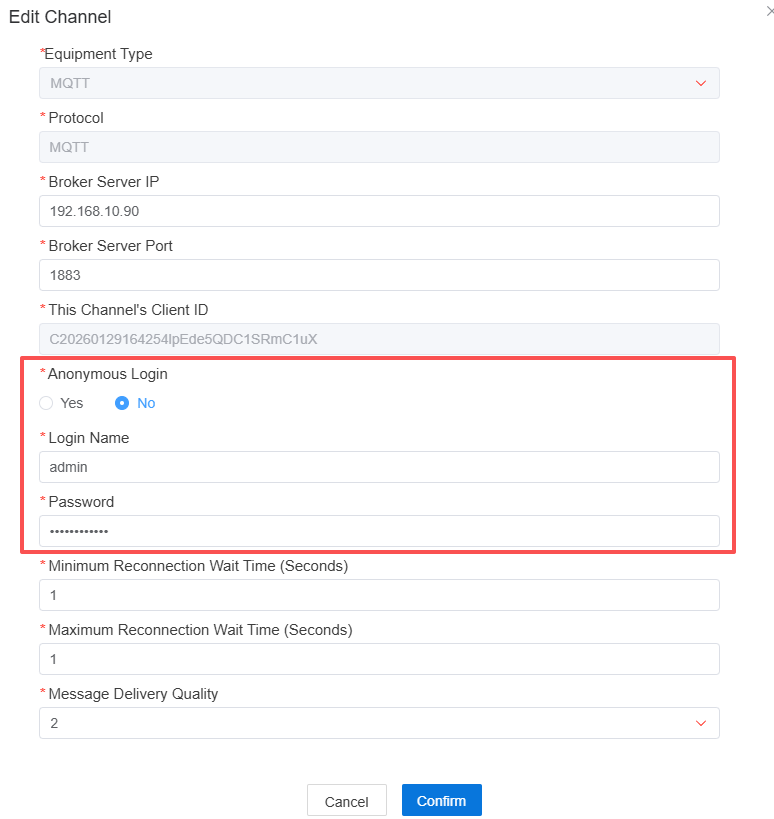
Select the MQTT equipment type. The MQTT protocol differs from other protocols, so additional configuration needs to be filled in when adding the channel.
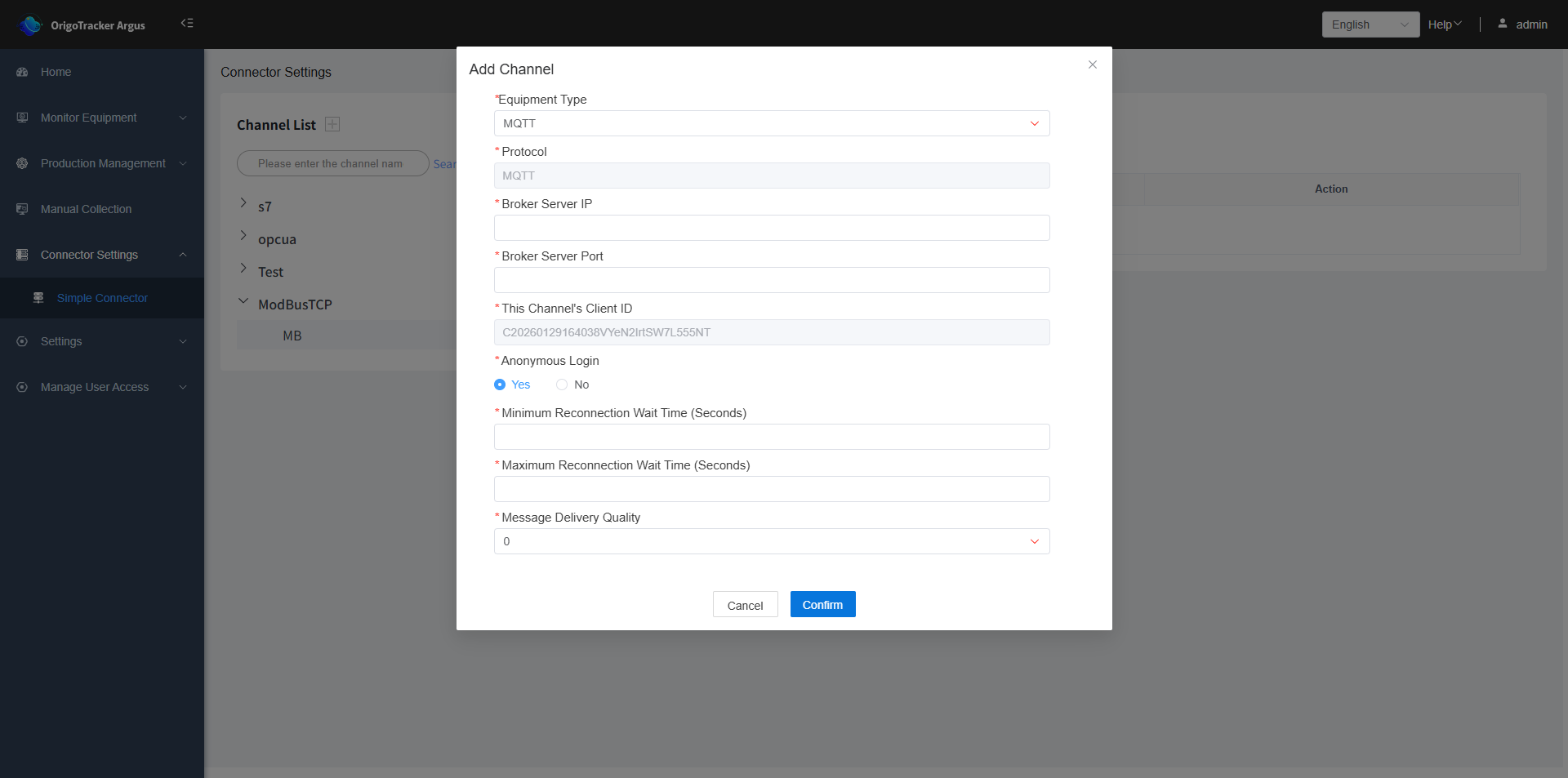
| Field | Description |
|---|---|
| Broker Server IP | The IP address of the MQTT broker server. |
| Broker Server Port | The IP address port number of the MQTT broker server. |
| This Channel's Client ID | Each equipment connected to the MQTT broker server has a unique ID, which is automatically generated by the system and does not need to be filled in. |
Anonymous Login: Whether to log in anonymously. If you choose "No", you need to fill in the username and password.
| Field | Description |
|---|---|
| Minimum Reconnection Wait Time (seconds) | The duration to wait before attempting to reconnect after the device disconnects from the broker server. |
| Maximum Reconnection Wait Time (seconds) | The maximum allowed duration for the device to perform a reconnection operation with the broker server. |
| Message Delivery Quality | The quality level of message sending: 0. At most once, no confirmation of receipt required; 1. At least once, ensuring it is received at least once; 2. Exactly once, ensuring the recipient receives it only once |
3. Add connection under a channel
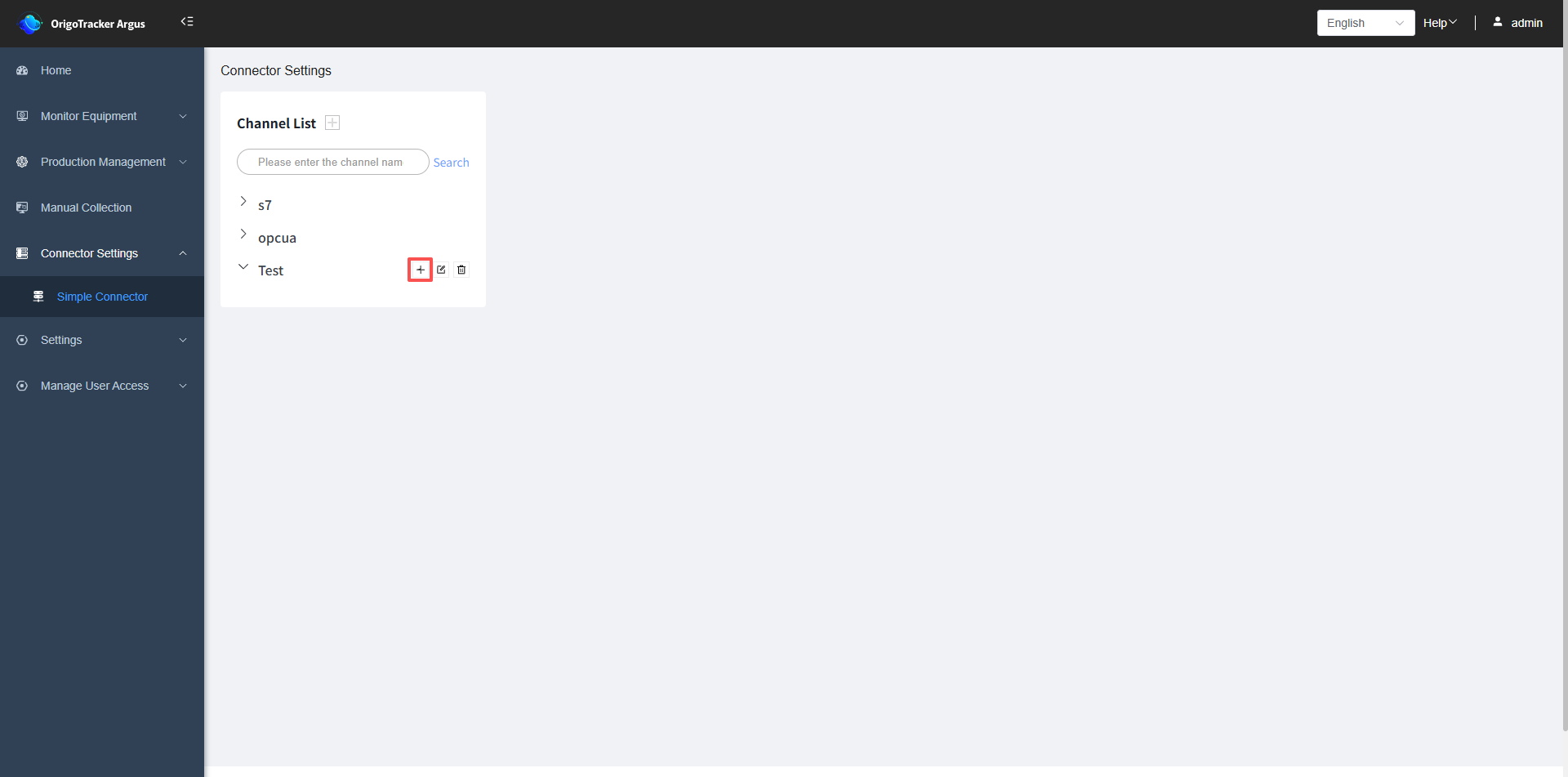
After adding a channel, click the plus sign to the right of the channel name to add a connection under it.
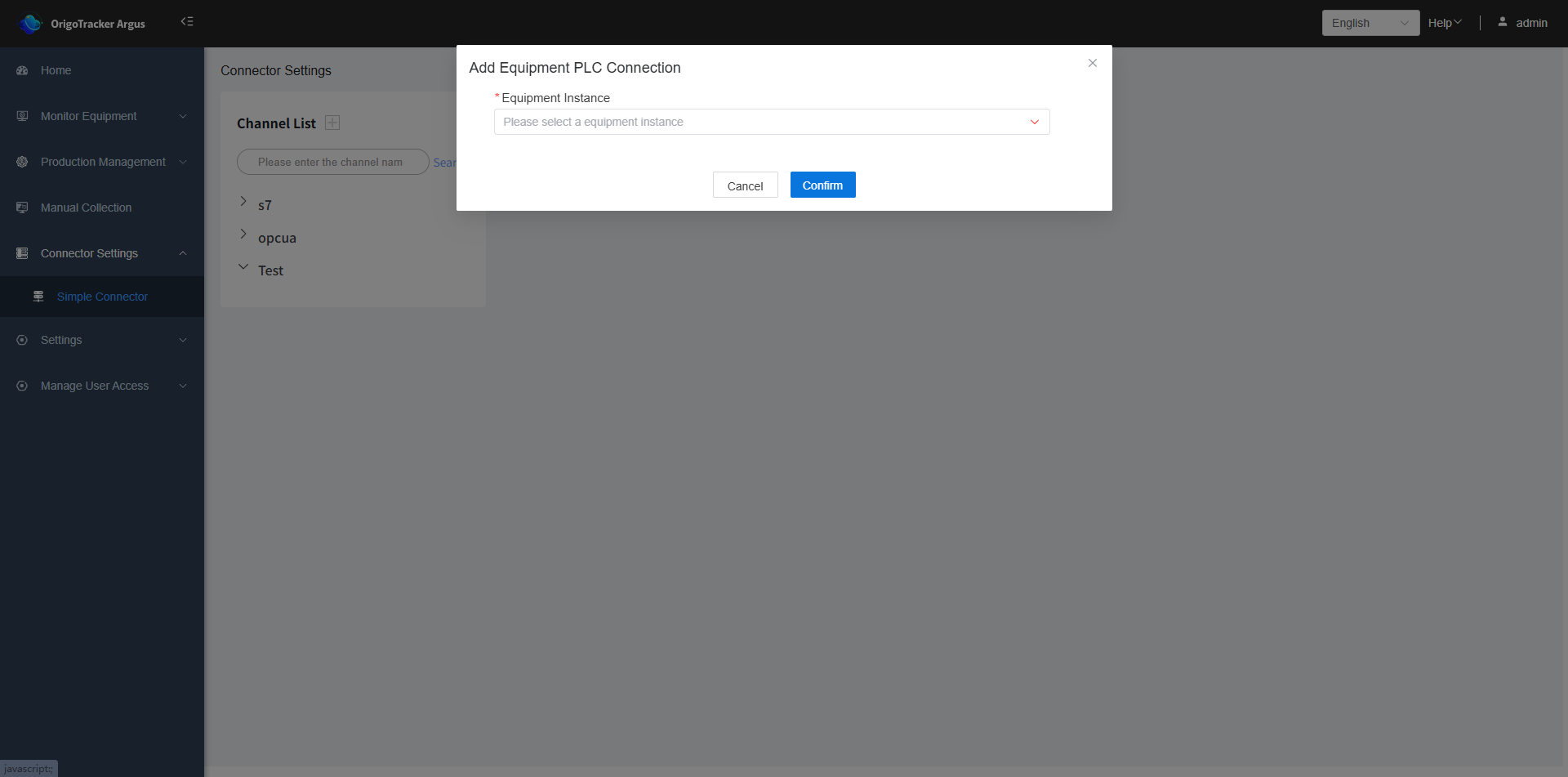
- Equipment Instance: Select the equipment instance under this channel.
4. Add tag
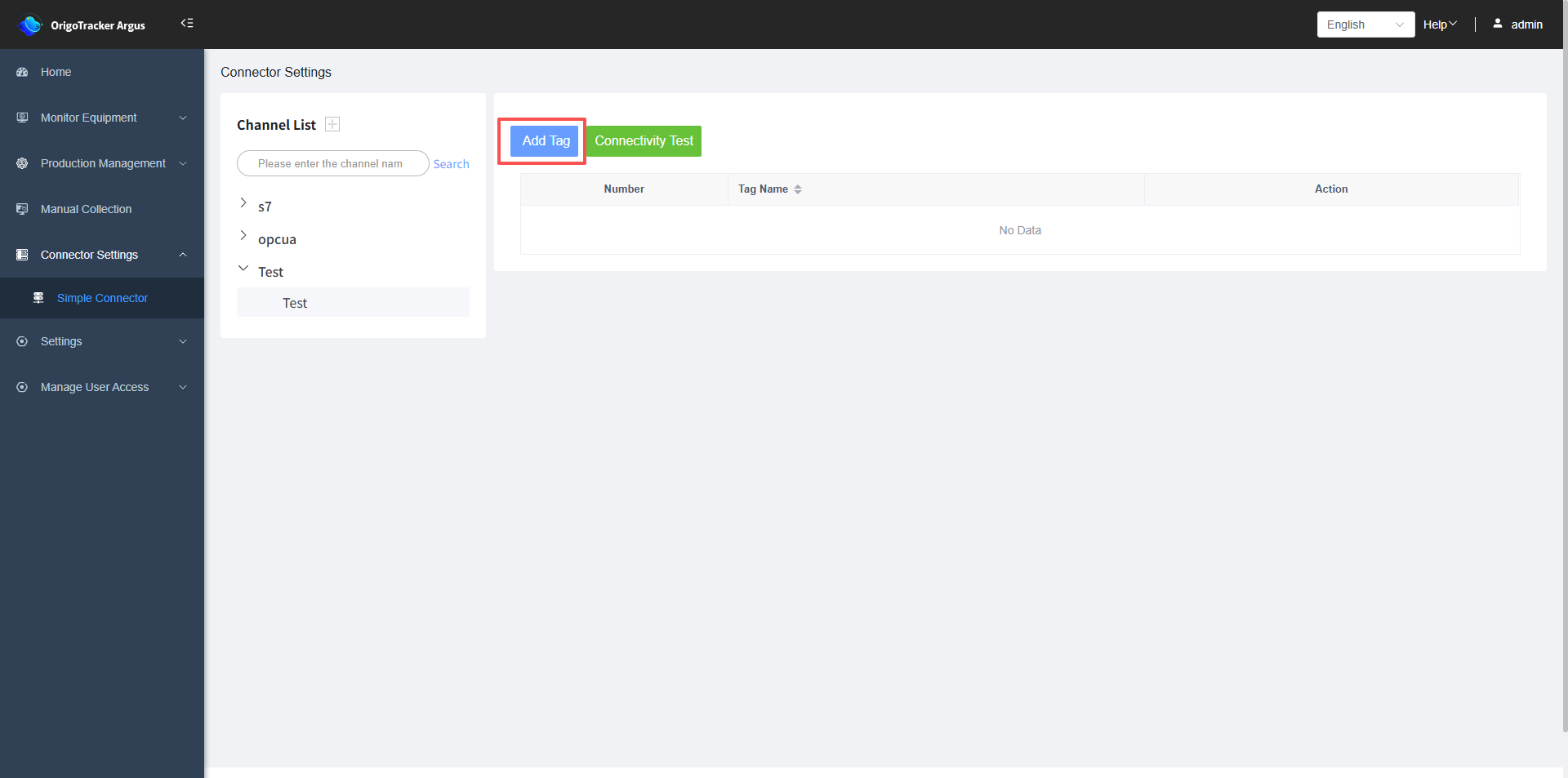
Select the connection, and click "Add Tag" on the right.
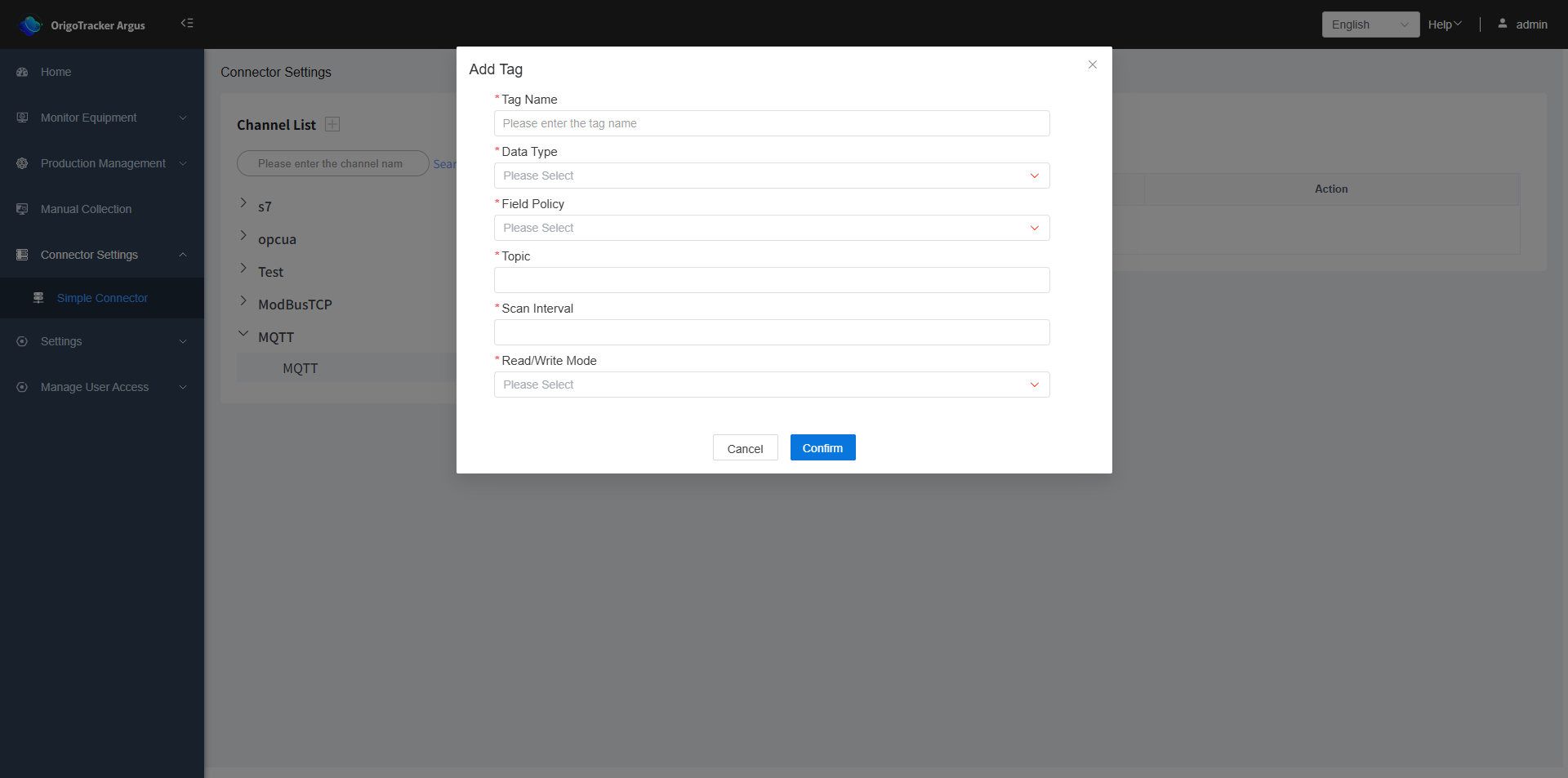
| Field | Description |
|---|---|
| Tag Name | The name of the tag. |
| Data Type | The data type of the PLC data tag. |
| Field Strategy | Used to distinguish where the data is stored within the MQTT message. If it is "Payload is value", the entire message contains only a single value. If it is "Get field from JSON", it means the MQTT message is a JSON, and the data is a specific JSON field within it, requiring you to fill in the JSON field name. |
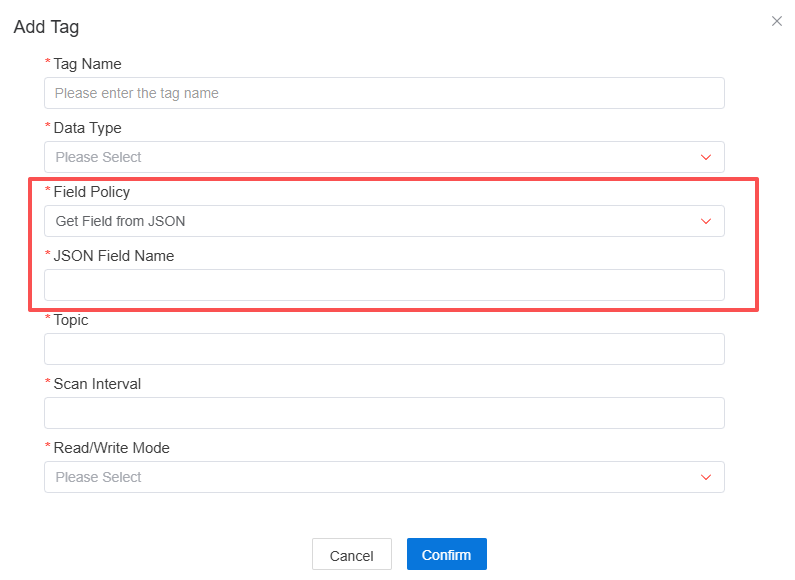
| Field | Description |
|---|---|
| Topic | Every MQTT message contains a topic, used to categorize the source and destination of the message. |
| Scan Interval | The time interval for polling tags when monitoring them. |
| Read/Write Mode | Select whether the PLC data tag is read-only or read-write. |
After completion, the tags you added will be displayed on the right side.
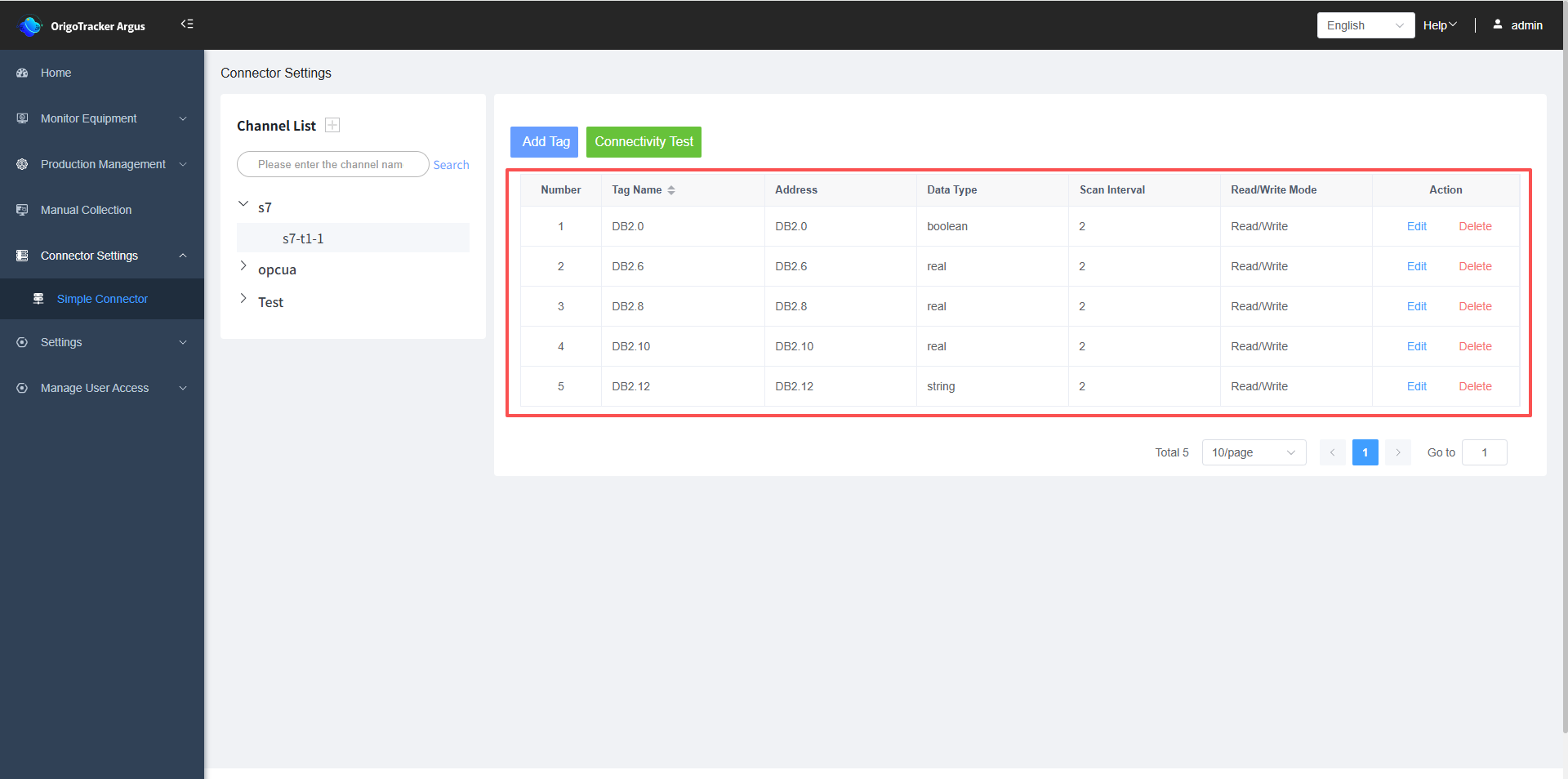
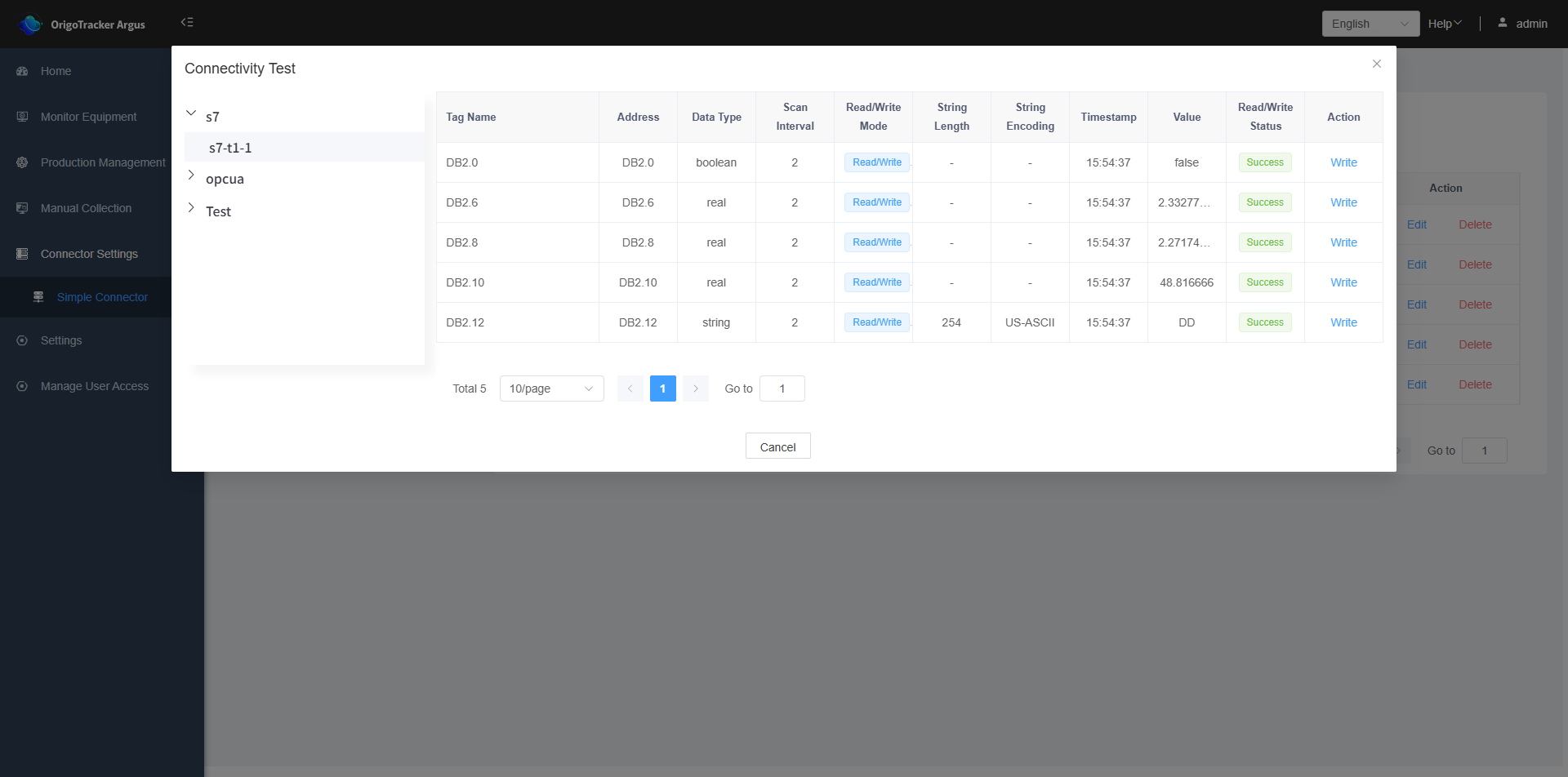
5. Connectivity Test
After adding tags, we can test the tags to see if they can receive MQTT messages.
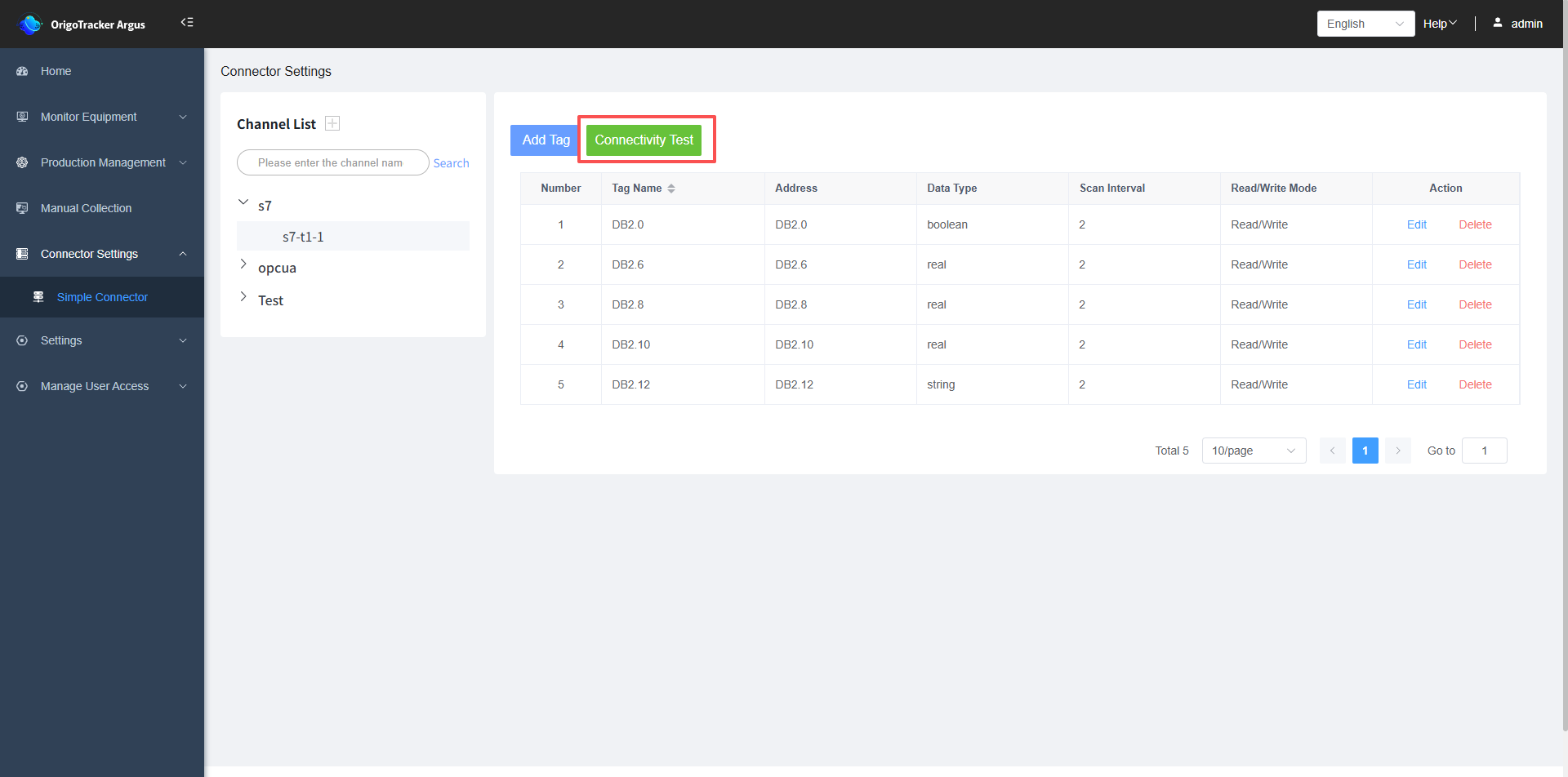
A access status of "Success" indicates that it can receive messages, meaning the tag can be read correctly
If it shows "Failure", this means the tag cannot receive messages, or the setting of the tag is invalid.