Siemens S7 Protocol
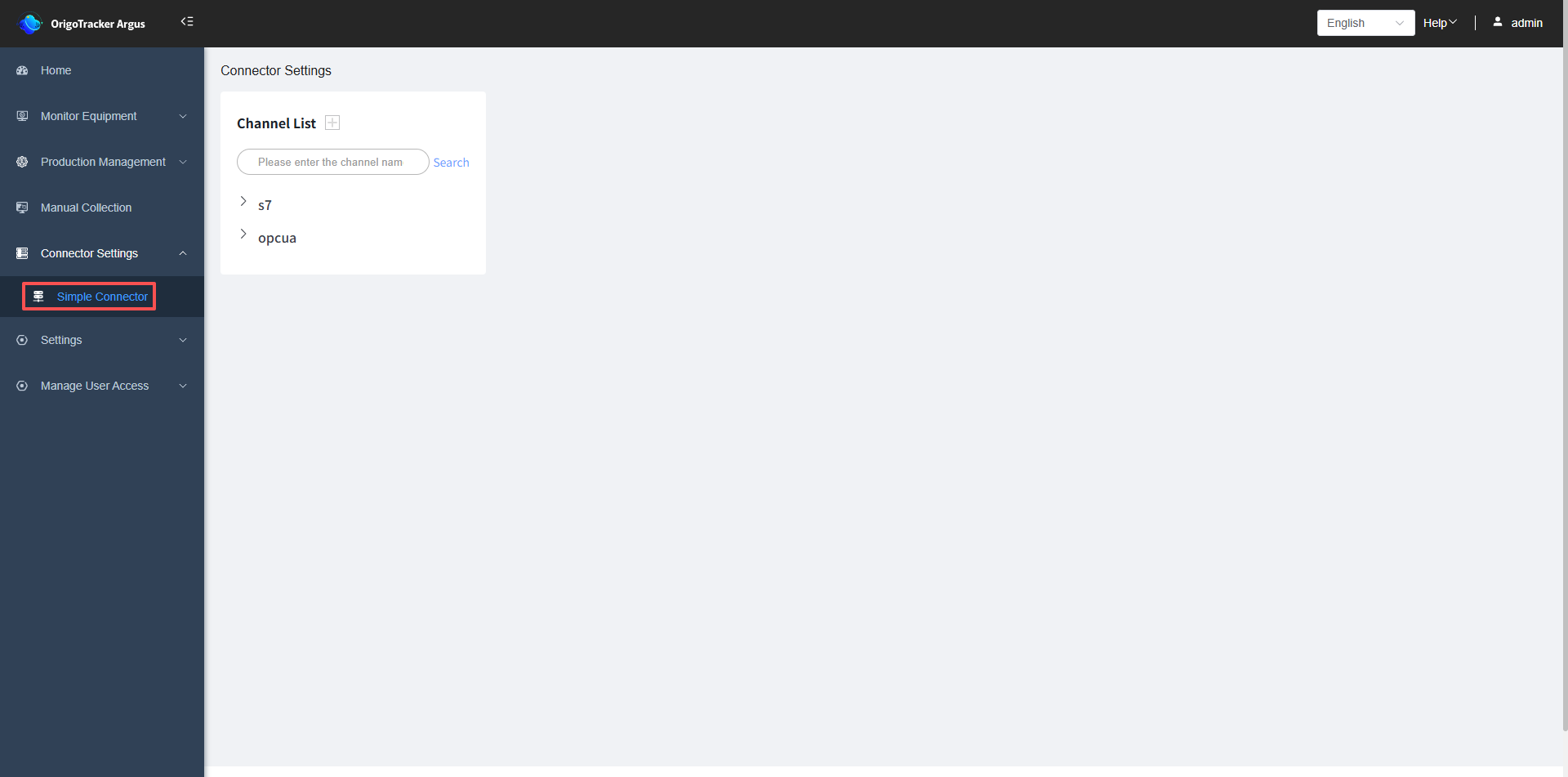
1. Simple Connetor page
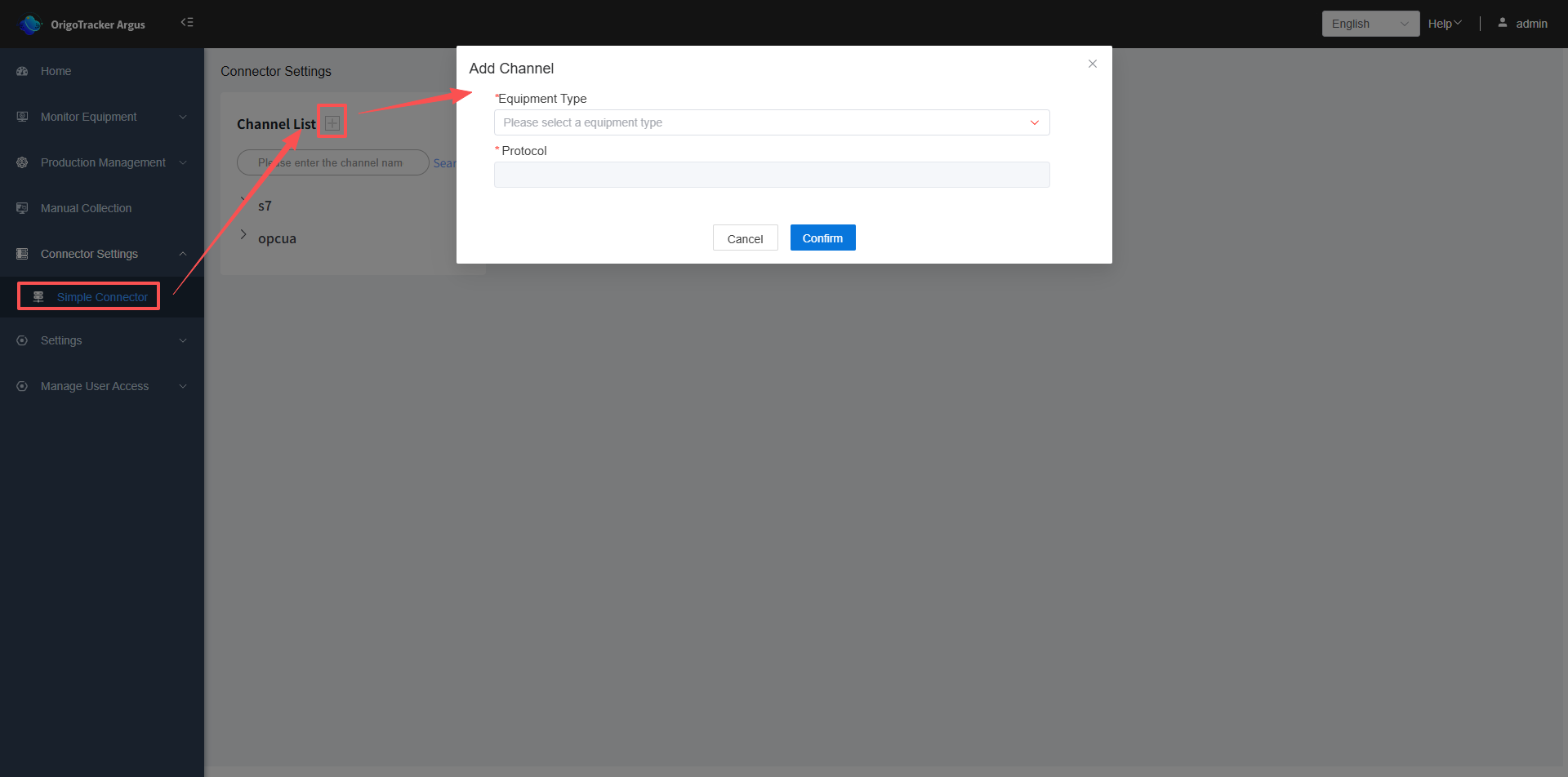
 Click the plus sign next to the Channel List, add a Siemens S7 protocol.
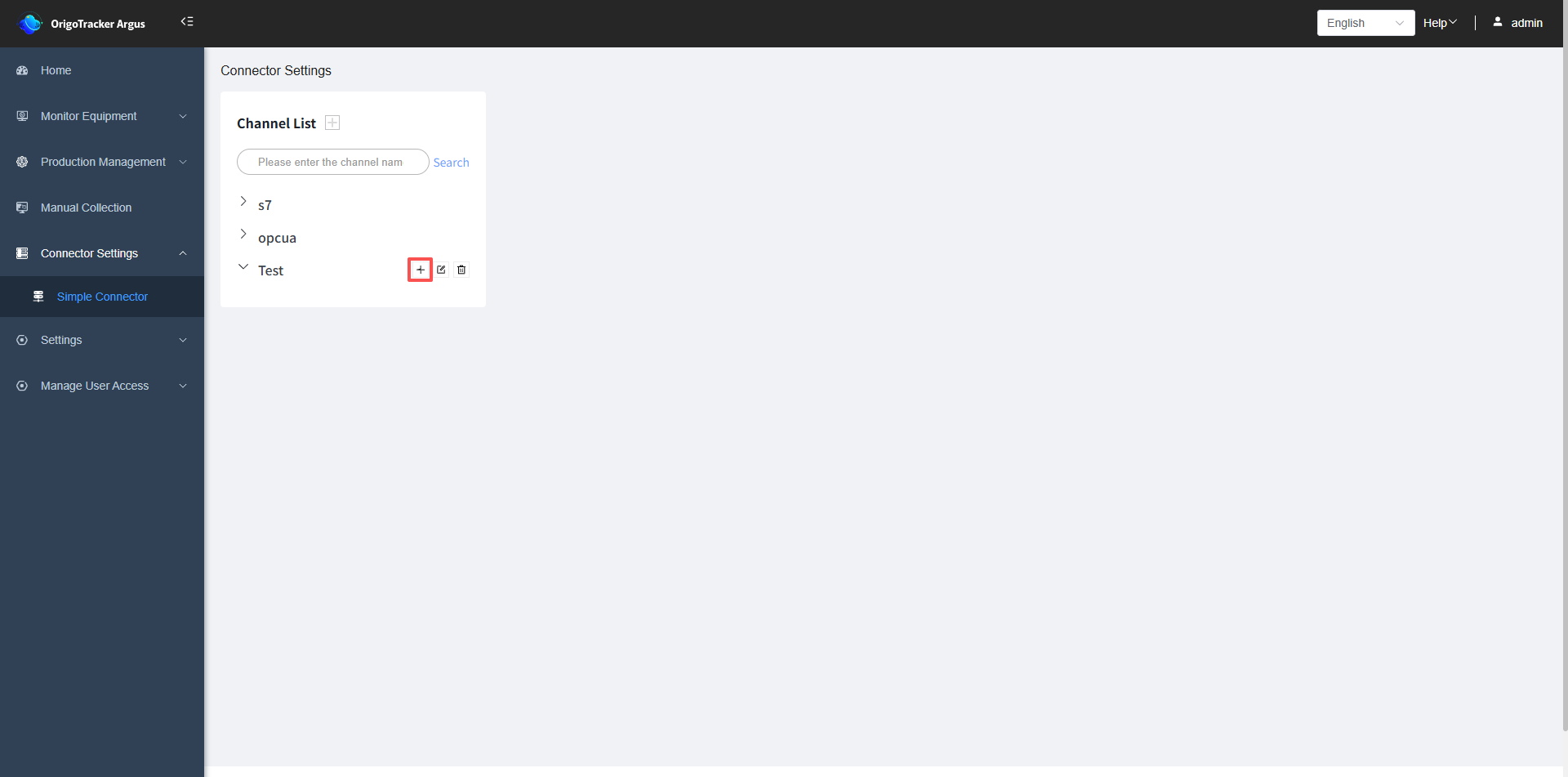
2. Under the channel, add an equipment PLC connection
After adding a channel with the S7 protocol, click the plus sign to the right of the channel name to add an S7 protocol PLC connection under that channel.
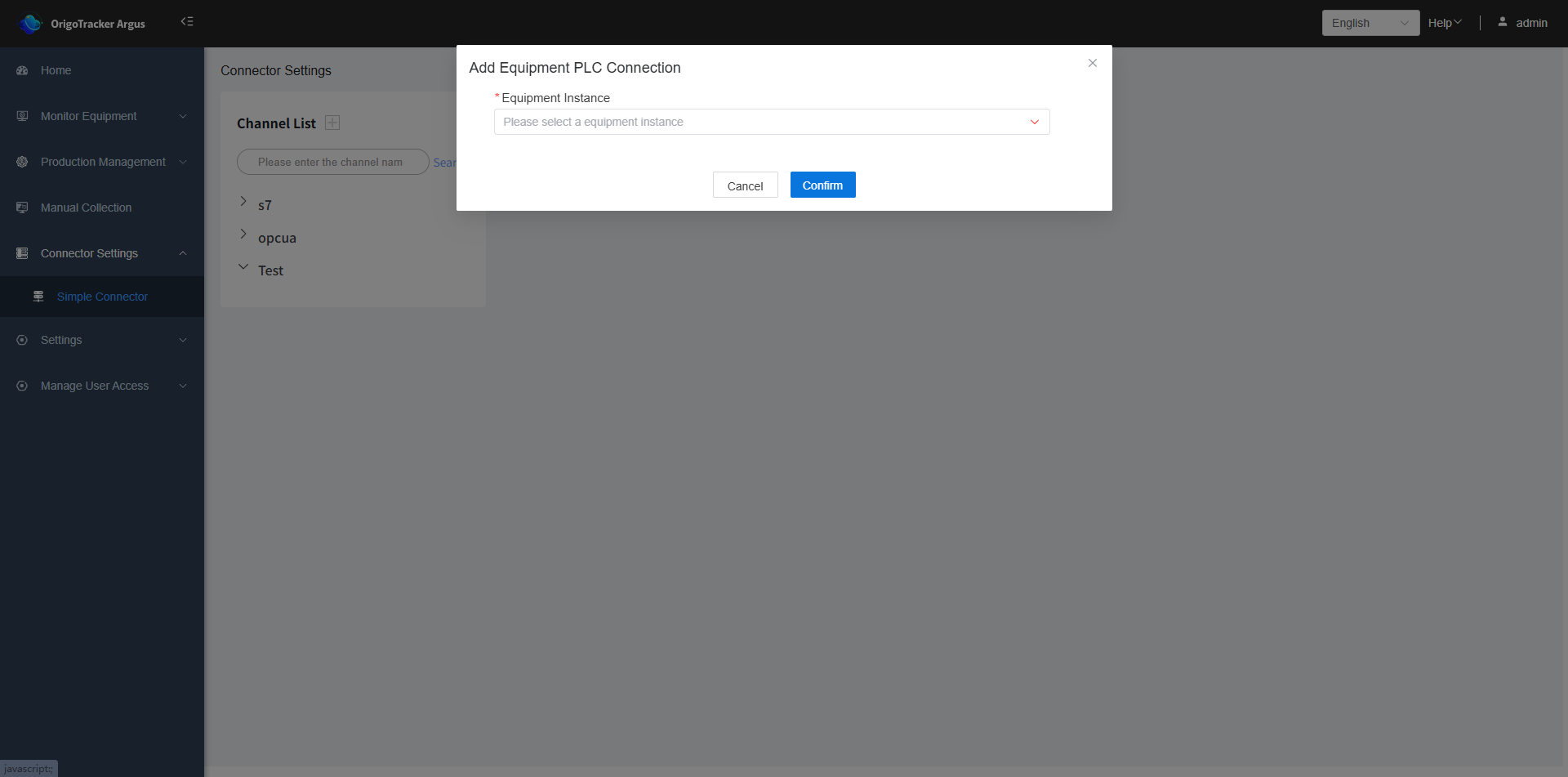
| Field | Description |
|---|---|
| Equipment Instance | Select the equipment instance under this channel. |
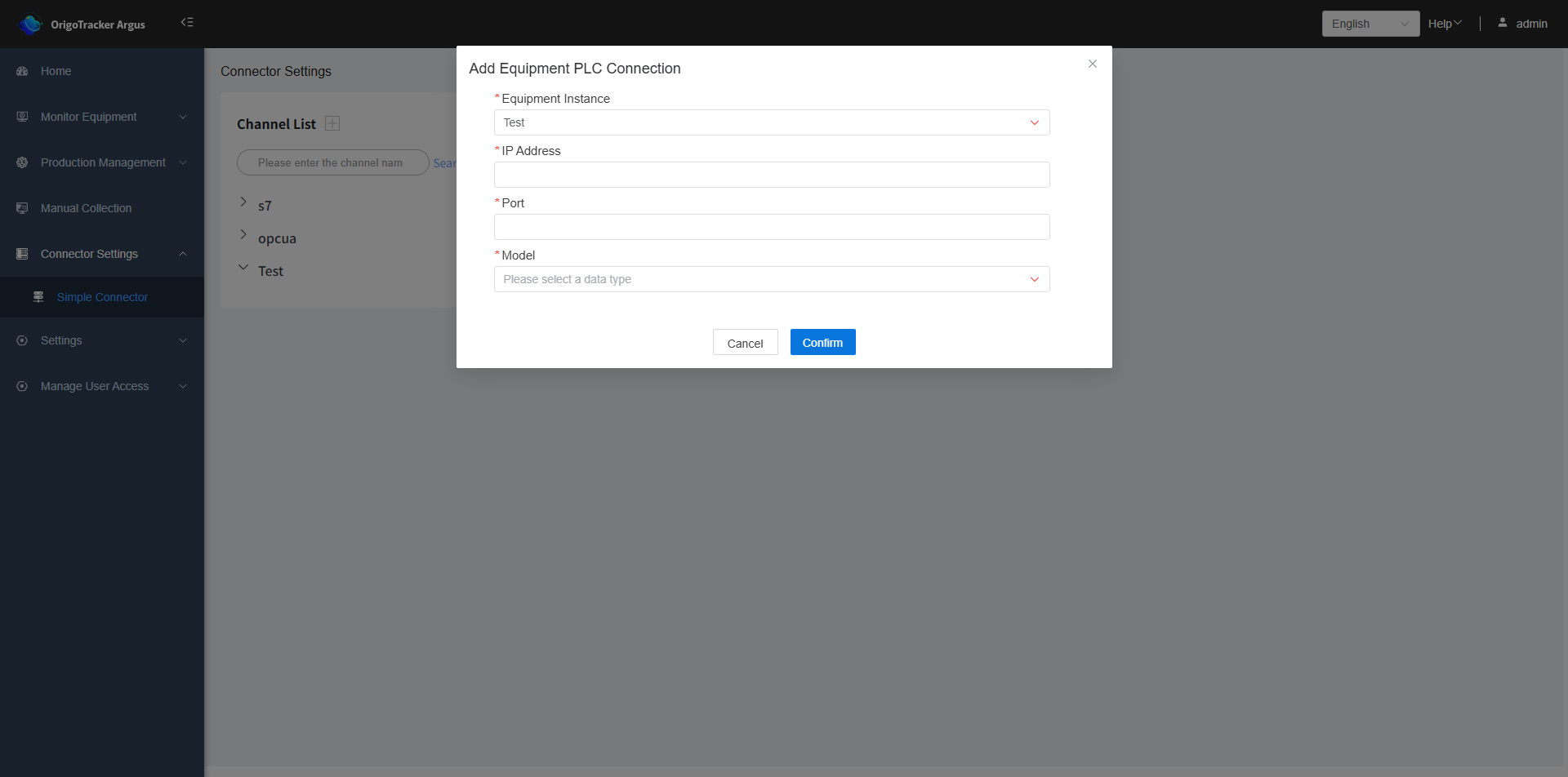
| Field | Description |
|---|---|
| IP Address | The IP address of the PLC. |
| Port | The IP port number of the PLC. |
| Model | The model of the Siemens PLC. |
3. After adding a channel, you can see the added PLC device connection under it.
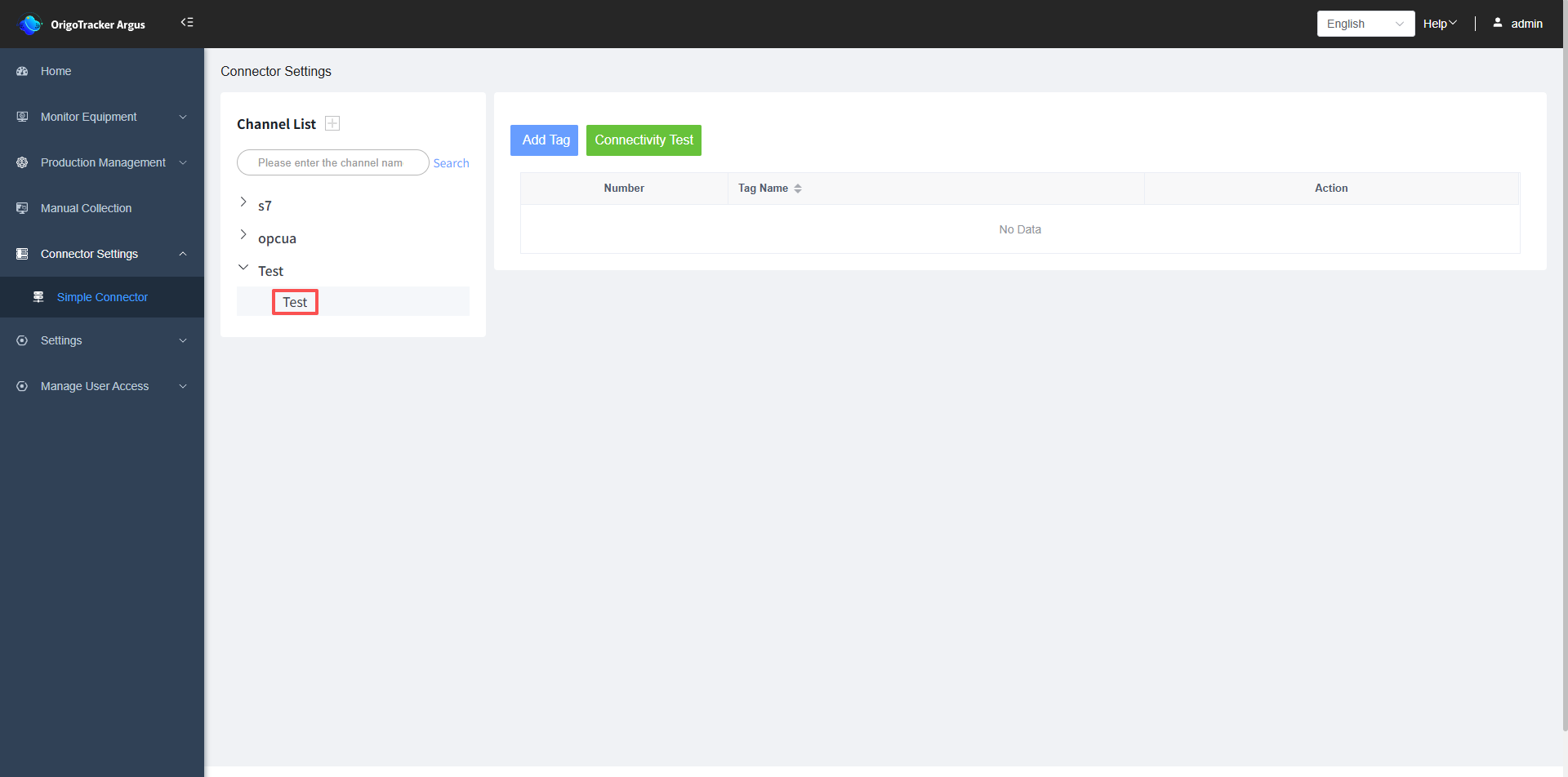
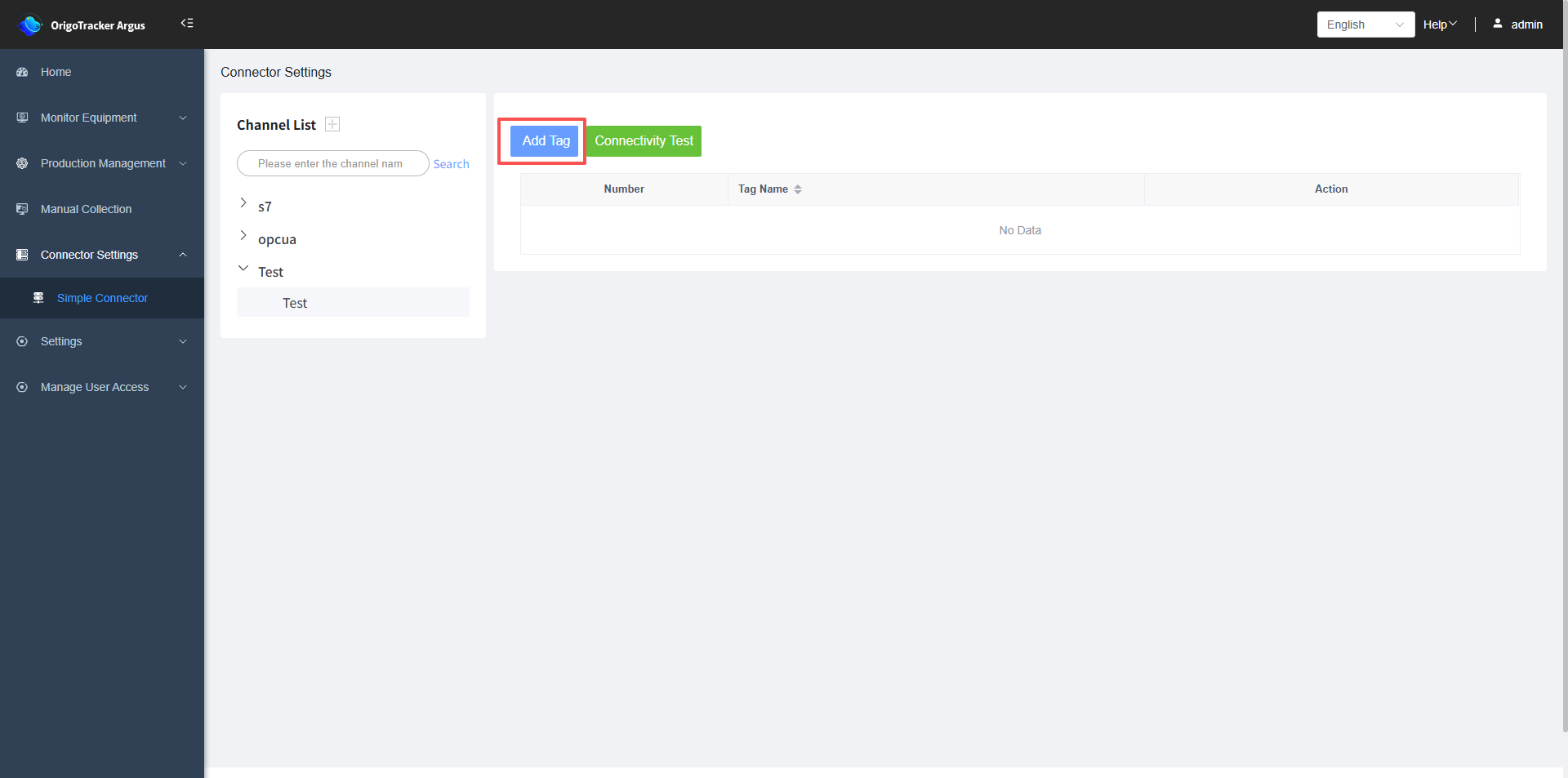
4. Add tags within the PLC of the equipment.
Select the PLC connection, and click "Add Tag" on the right.
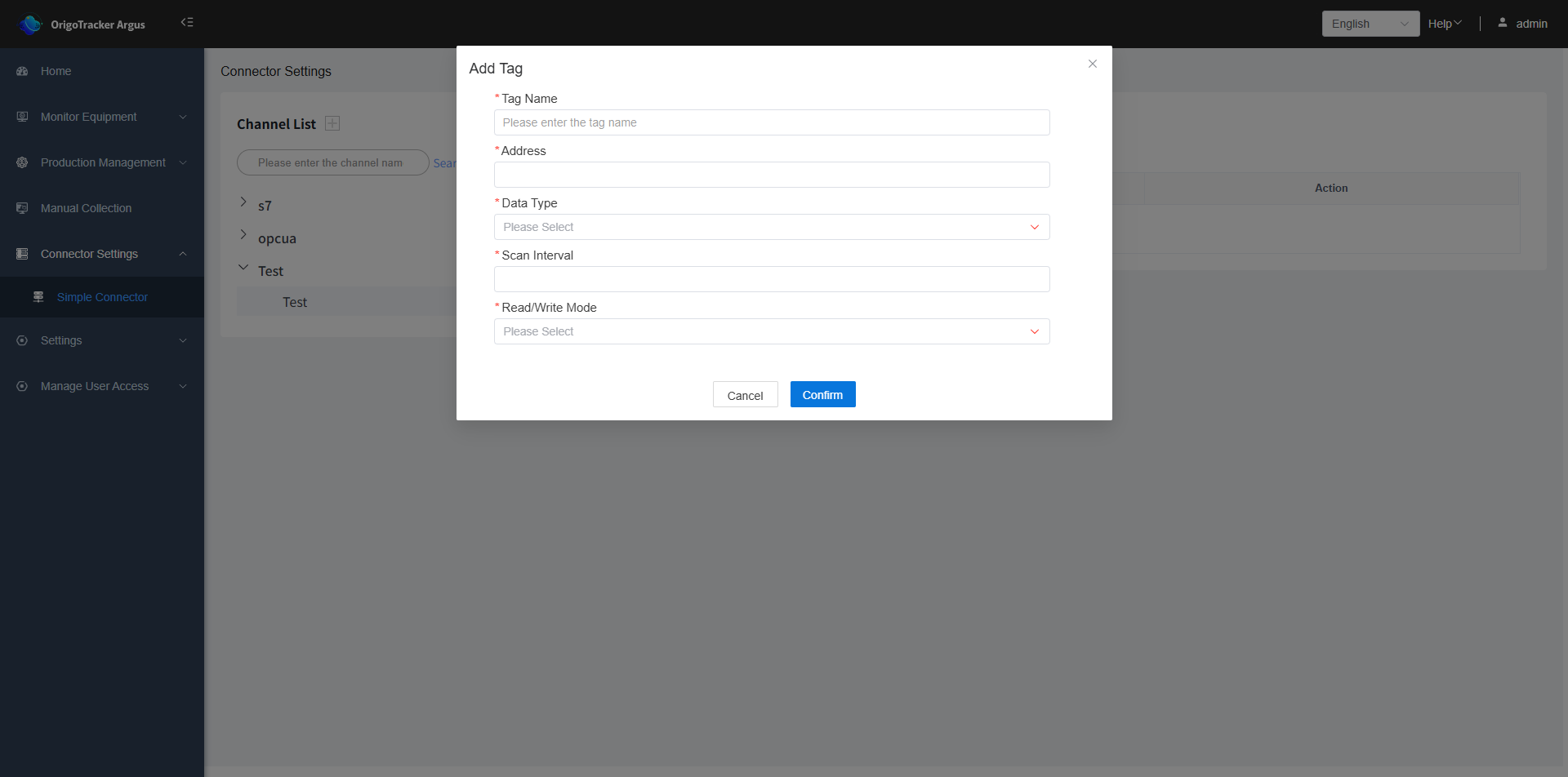
| Field | Description |
|---|---|
| Tag Name | The name of the tag. |
| Address | The address of the PLC data tag. |
| Data Type | The data type of the PLC data tag. |
| Scan Interval | The time interval to scan the PLC tag. It is applicable when there is a need to subscribe the tag, and this will be the minimum interval to detect the tag value change. |
| Read/Write Mode | Select whether the PLC data tag is read-only or read-write. |
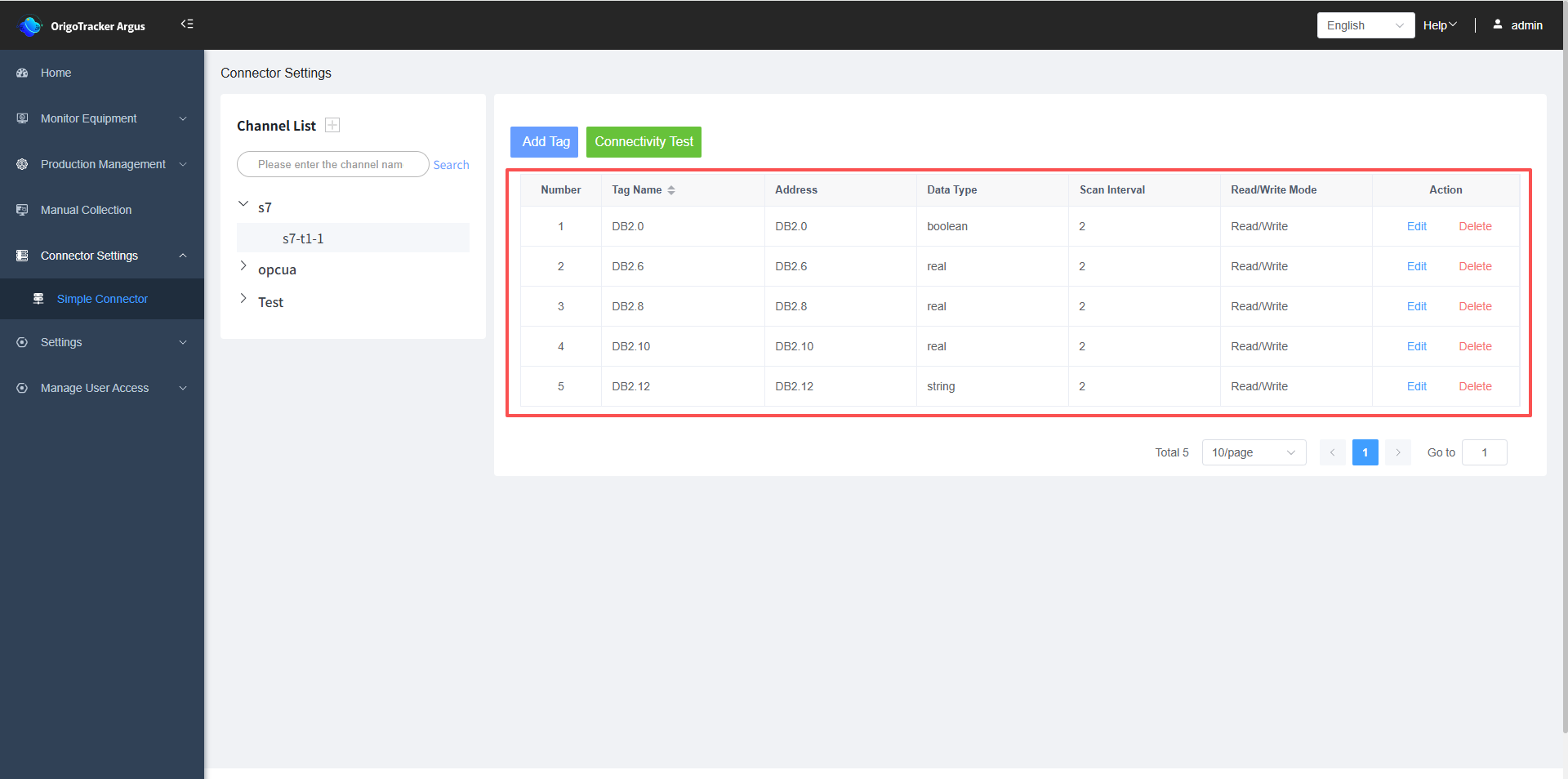
After completion, the tags you added will be displayed on the right side.
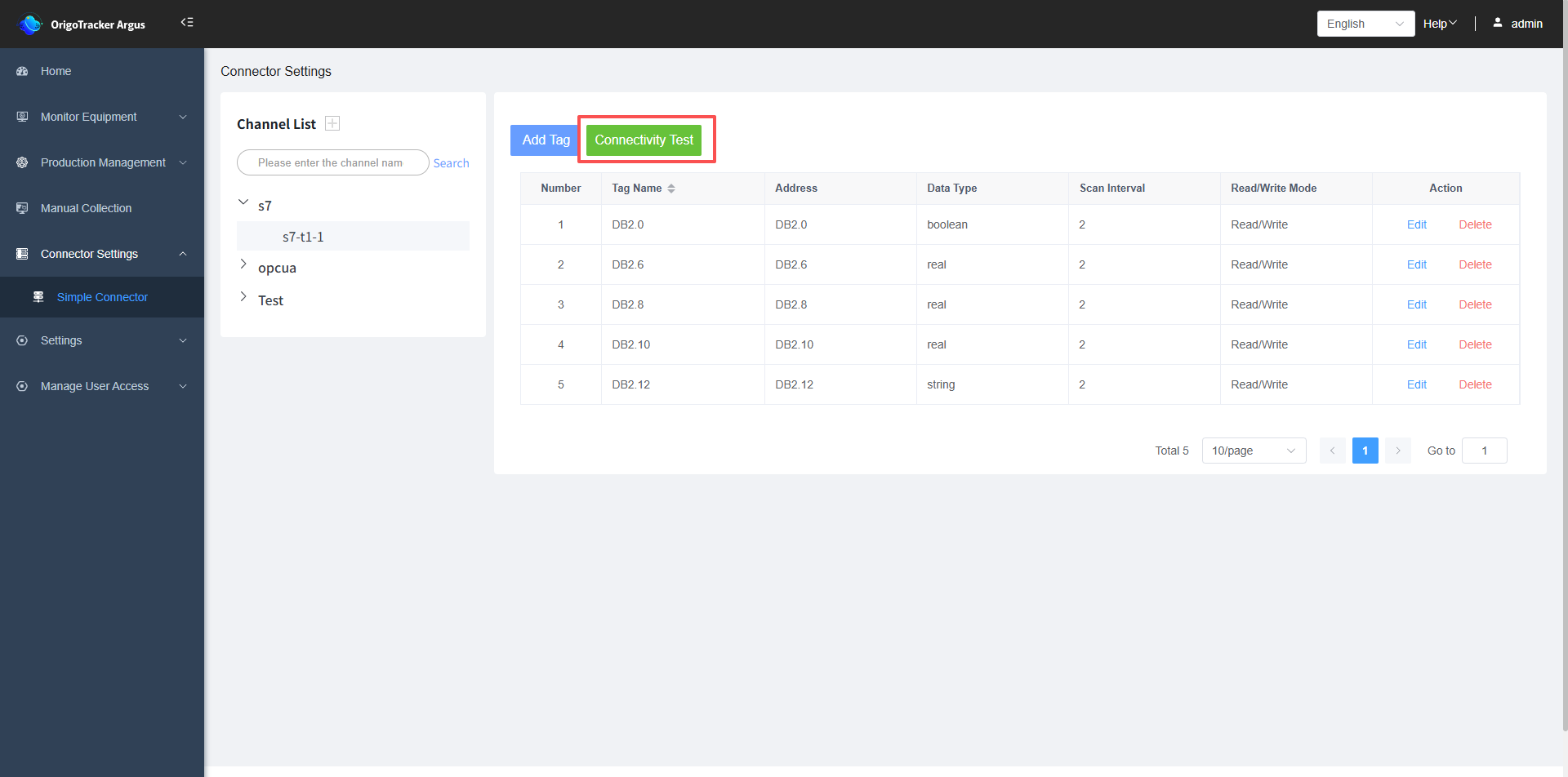
5. Connectivity Testing
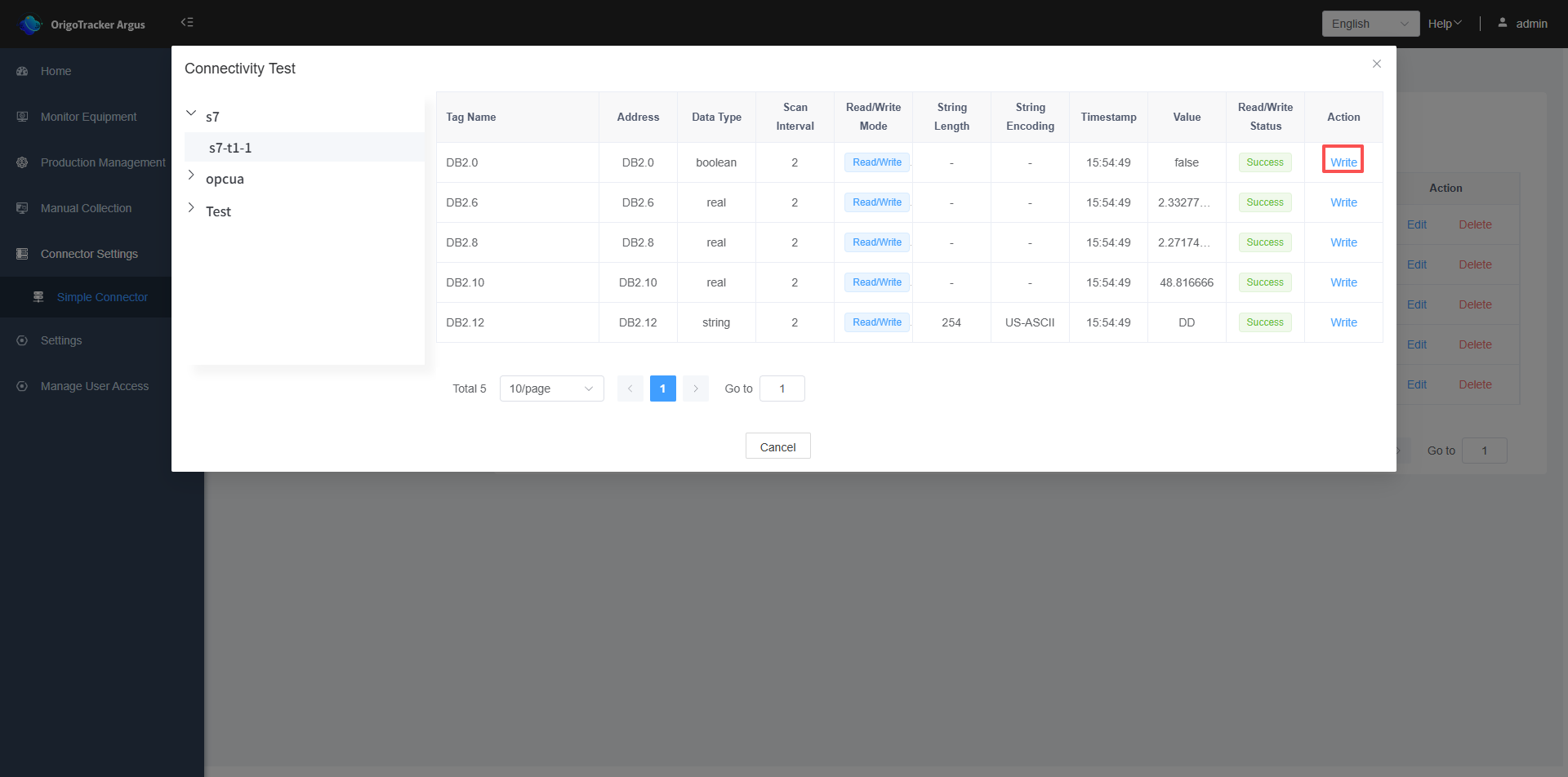
After adding device tags, we can test the tags to see if they can connect to the PLC.
An access status of "Success" indicates that it can connect to the PLC, meaning the tag is functioning correctly.
If it shows "Failure", this means the PLC tag cannot be read, there is a connection issue. )
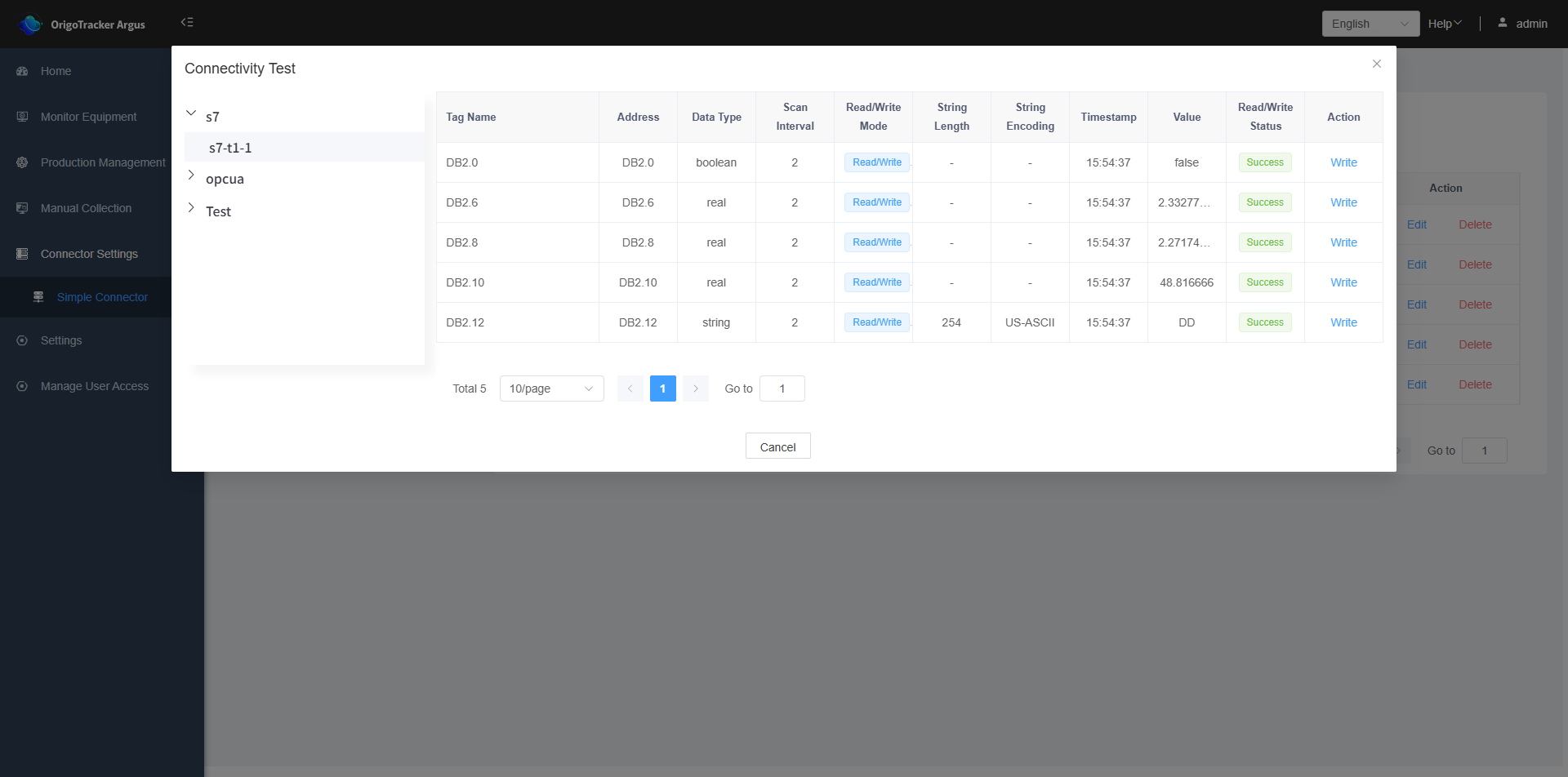
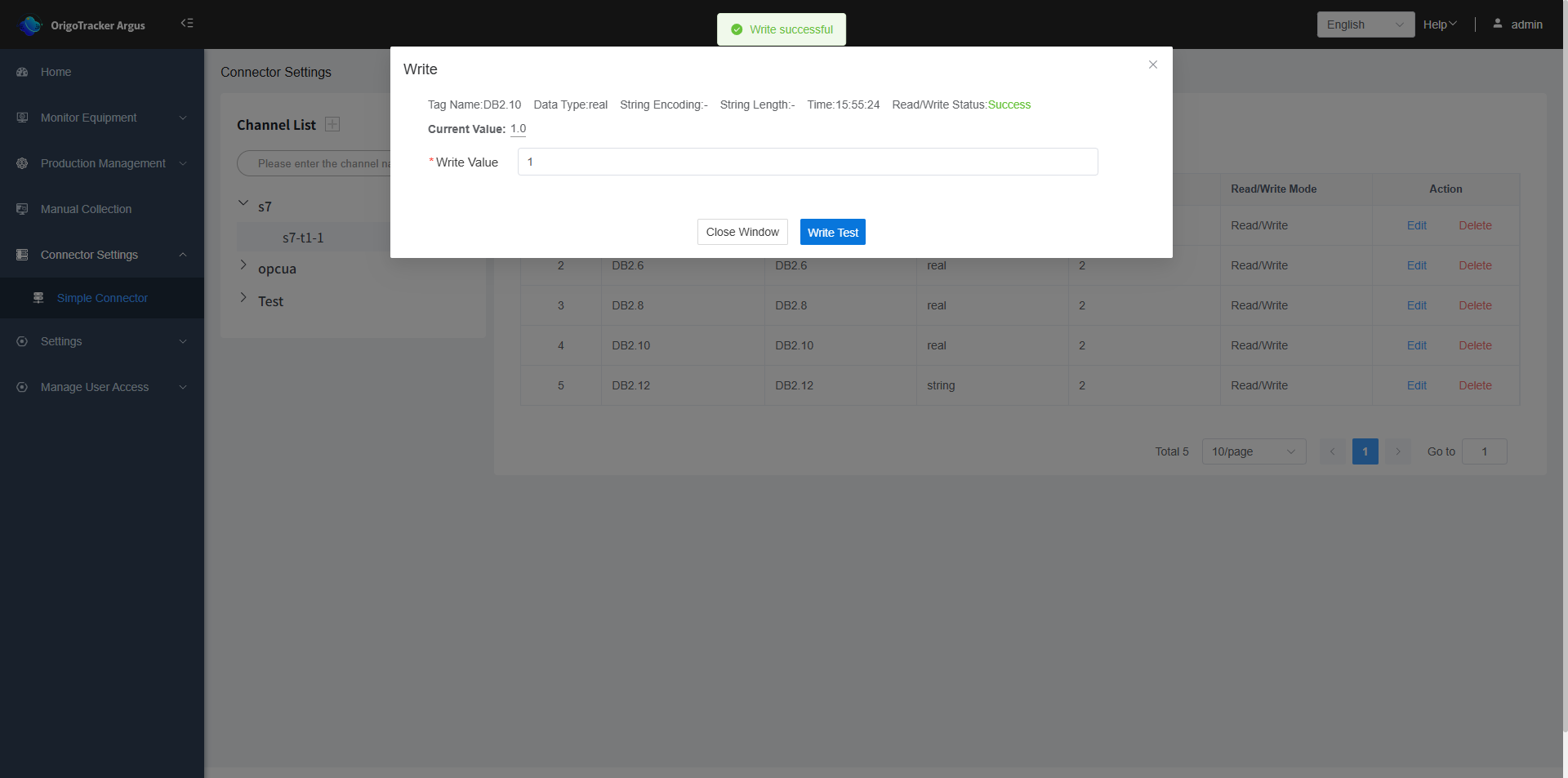
Click "Write" to perform a write test (only tags with a read/write mode set to "Read/Write" can be used for write testing).
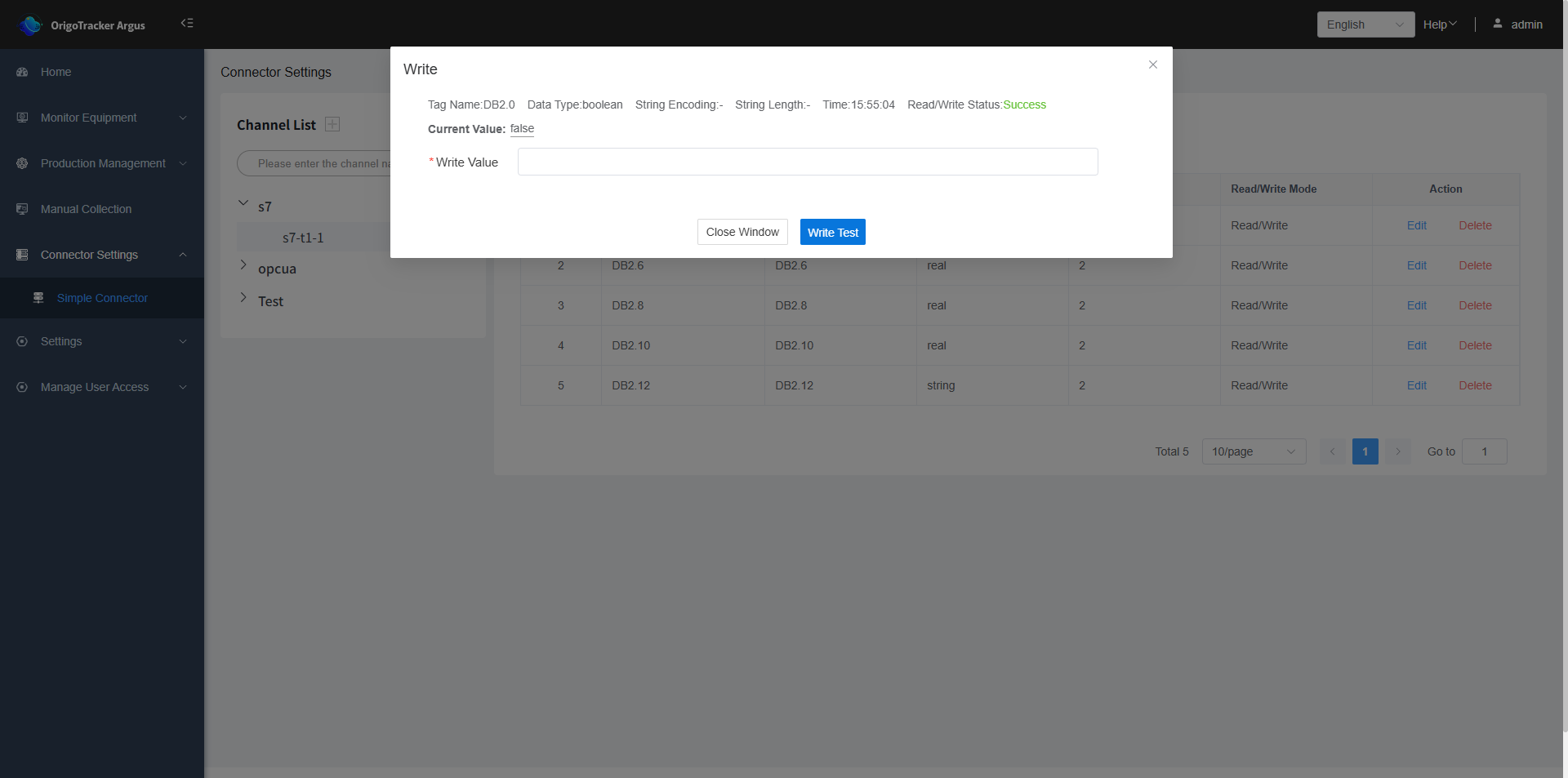
After filling in the data value and submitting, a "Write successful" message will be displayed upon successful writing.