Manual Collection
Manual data collection in the OrigoTracker Sequi is achieved by allowing users to define the data collection process and data items, and then manually submit the corresponding data through an app on a pad.
The steps to add manual collection are as follows:
1. Define New Manual Collection
Enter the Manual Collection page, click Add Manual Collection
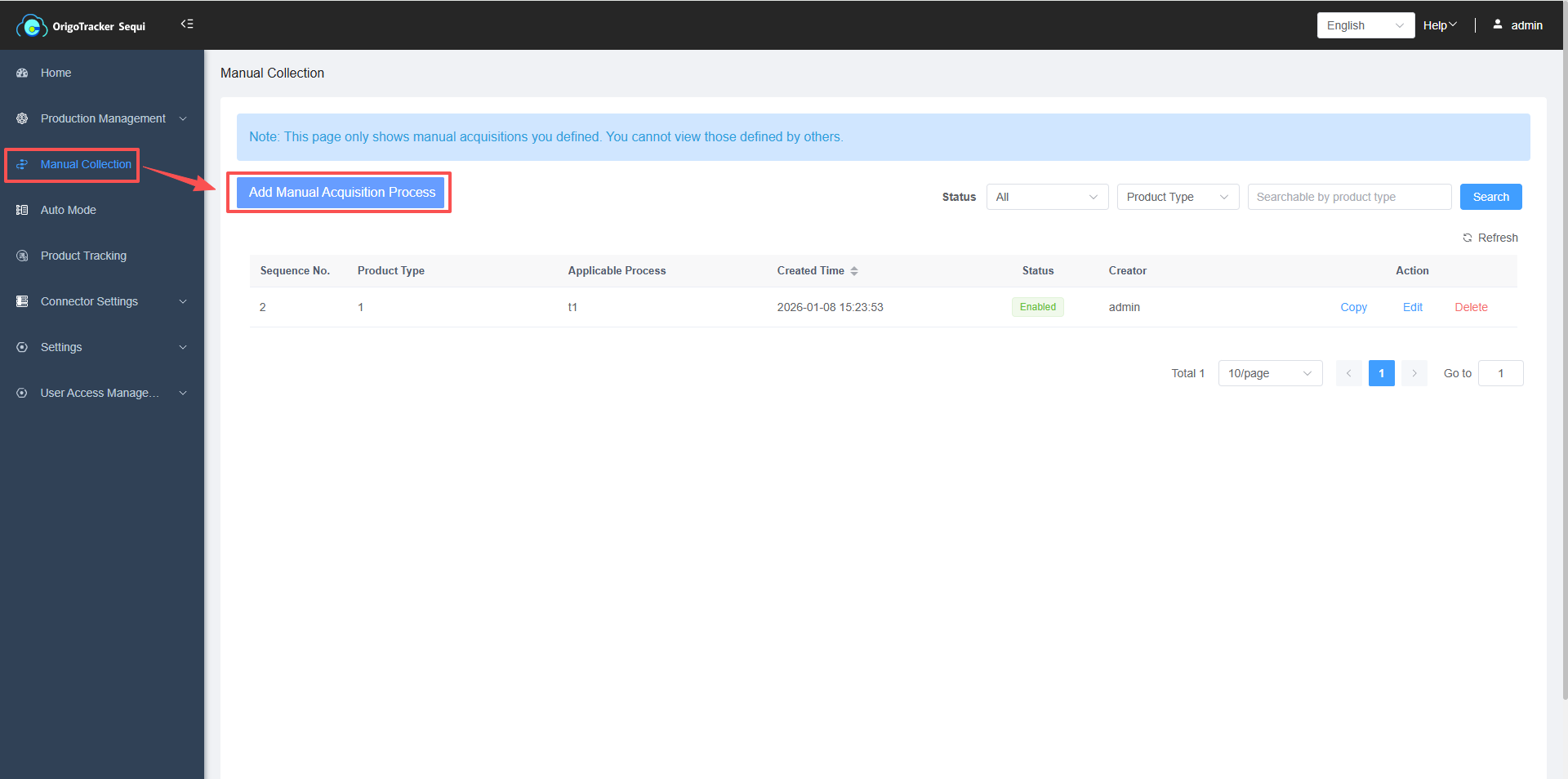
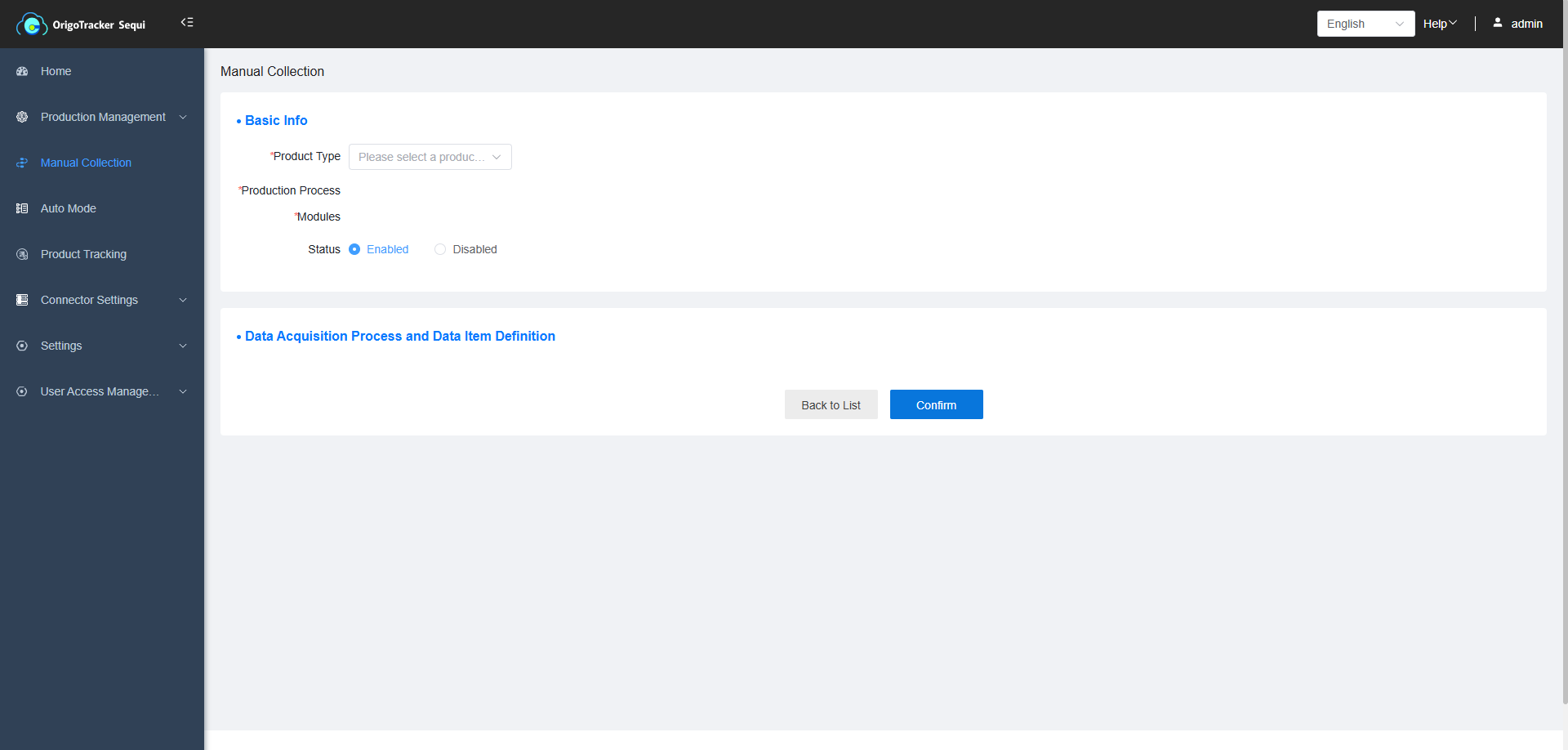
| Field | Description |
|---|---|
| Product Type | Select the previously defined product type to set up data collection methods and items for that model. |
| Status | Once disabled, production data for this product model cannot be collected on the pad. |
2. Define the data collection method
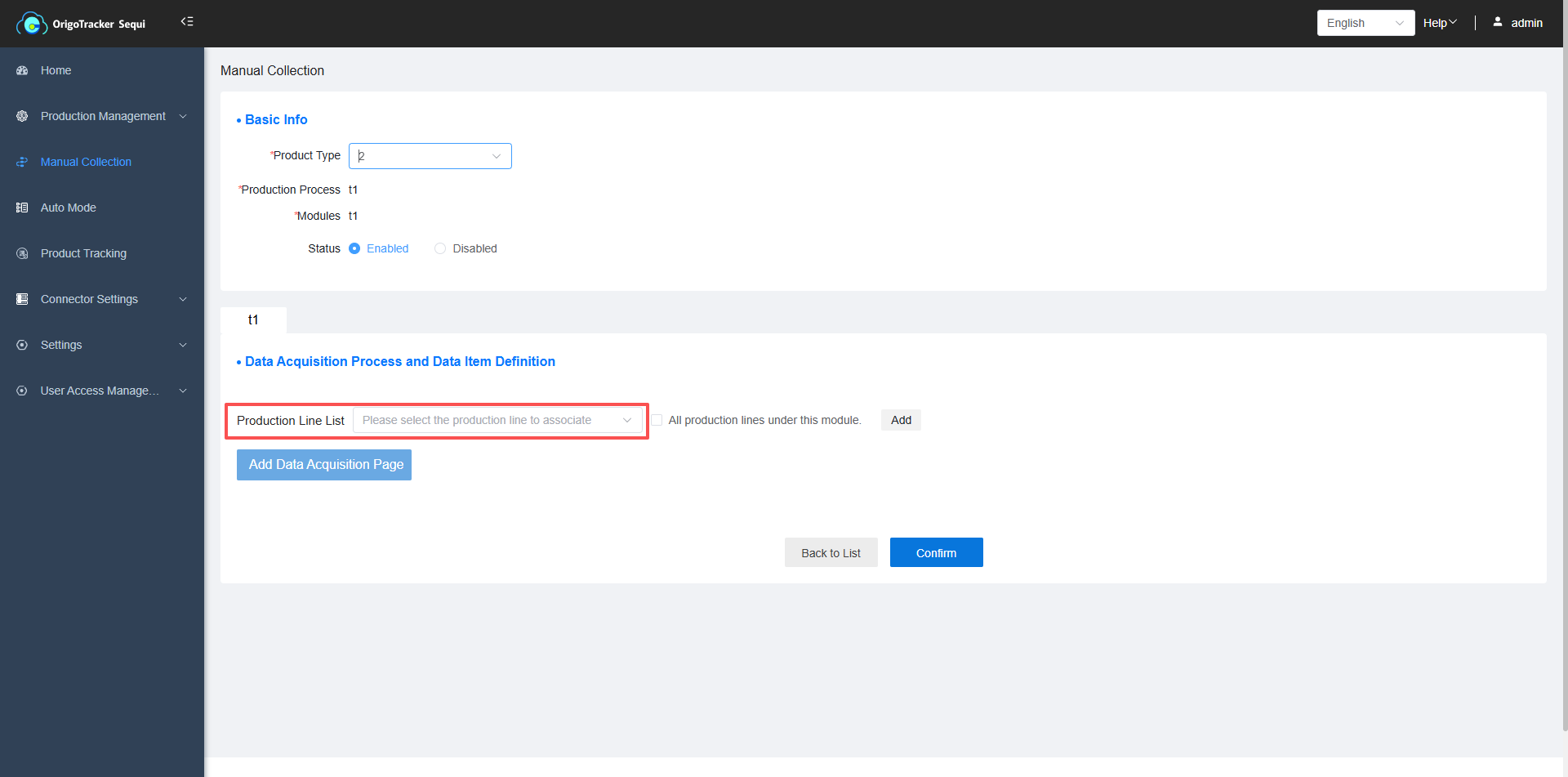
After selecting product type, you need to choose which production lines under the module will produce this product.
| Field | Description |
|---|---|
| Production Line List | Select which production lines under the module will produce this product. If the product is produced on all production lines under this module, you can check the option next to it. |
If the same product type requires different data collection across different production lines under the same module, you can click "Add New" on the right.
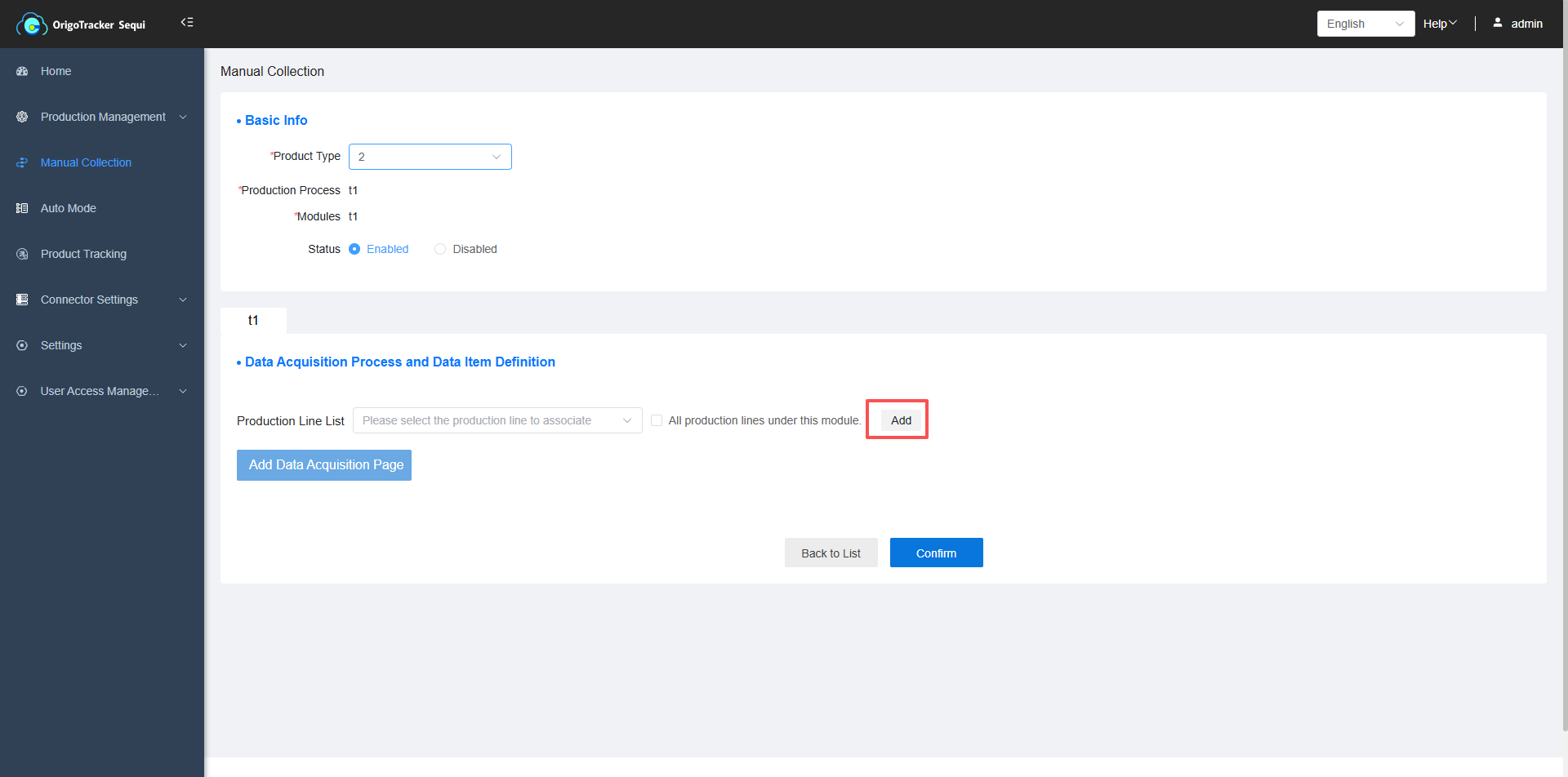
After adding, you can separately configure different data collection requirements for the same product type across different production lines under the same module.
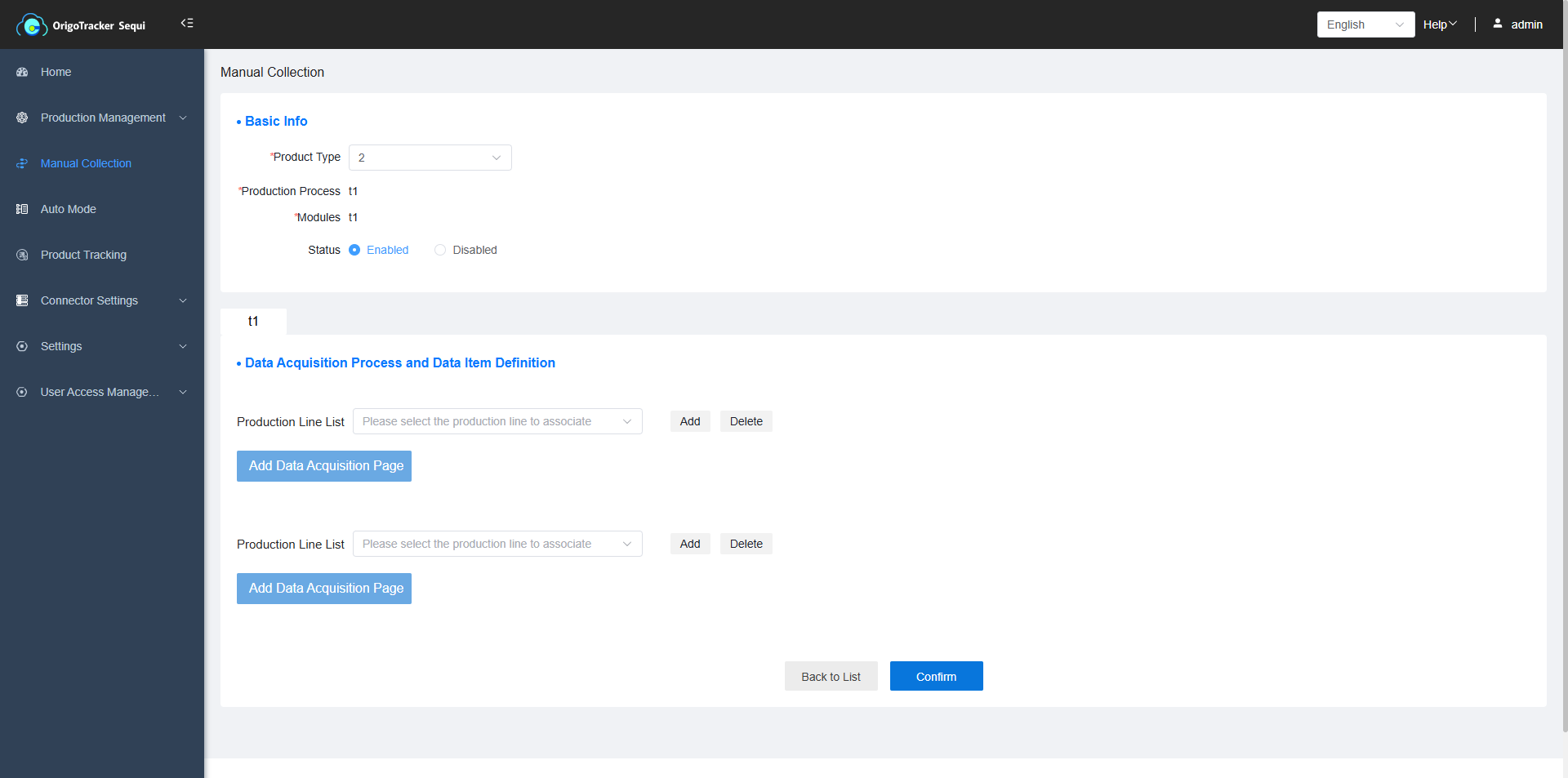
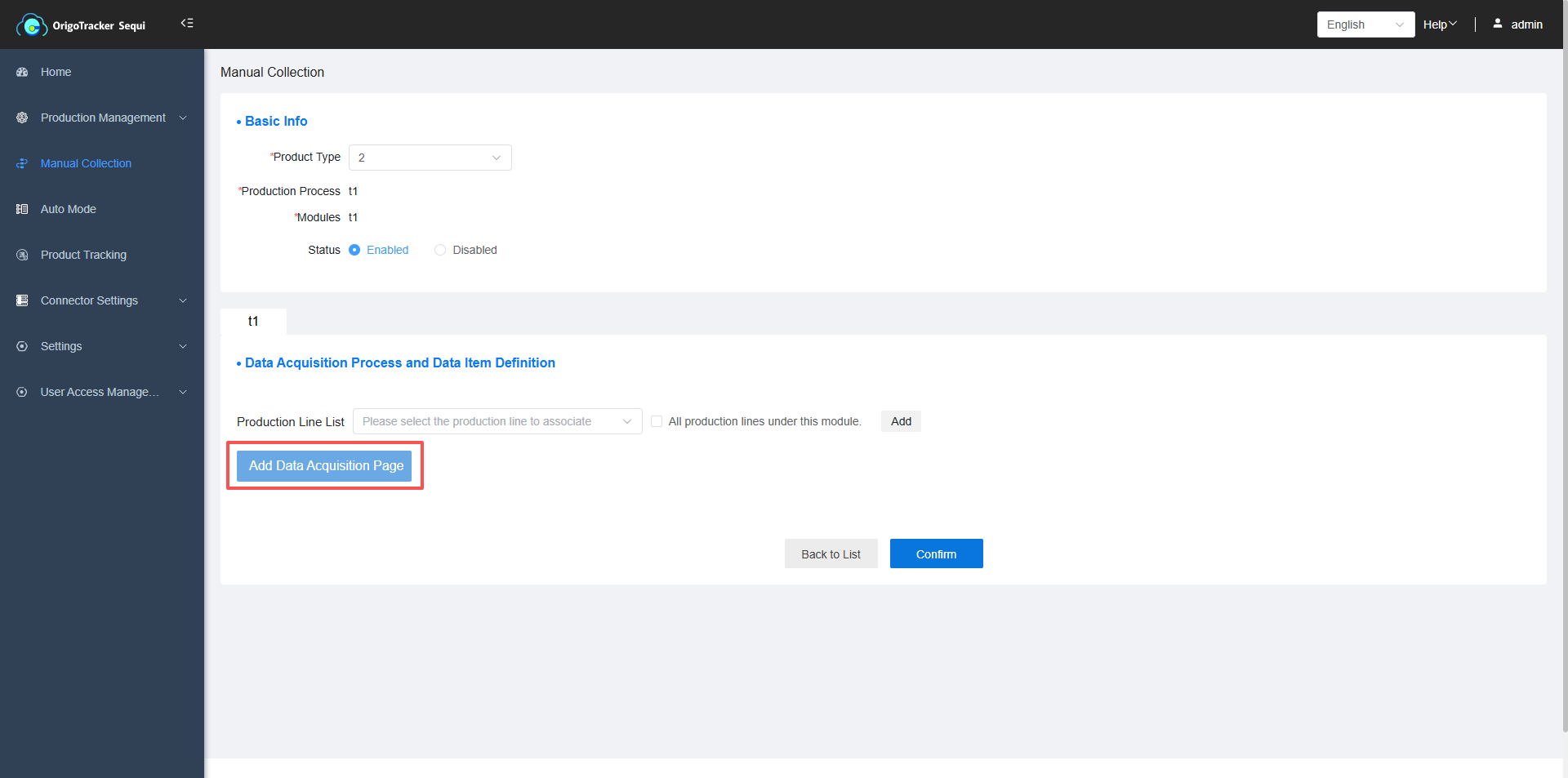
After selecting the production line, you can define the data collection methods and data items for the product on the chosen production line. Click "Add Data Collection Page".
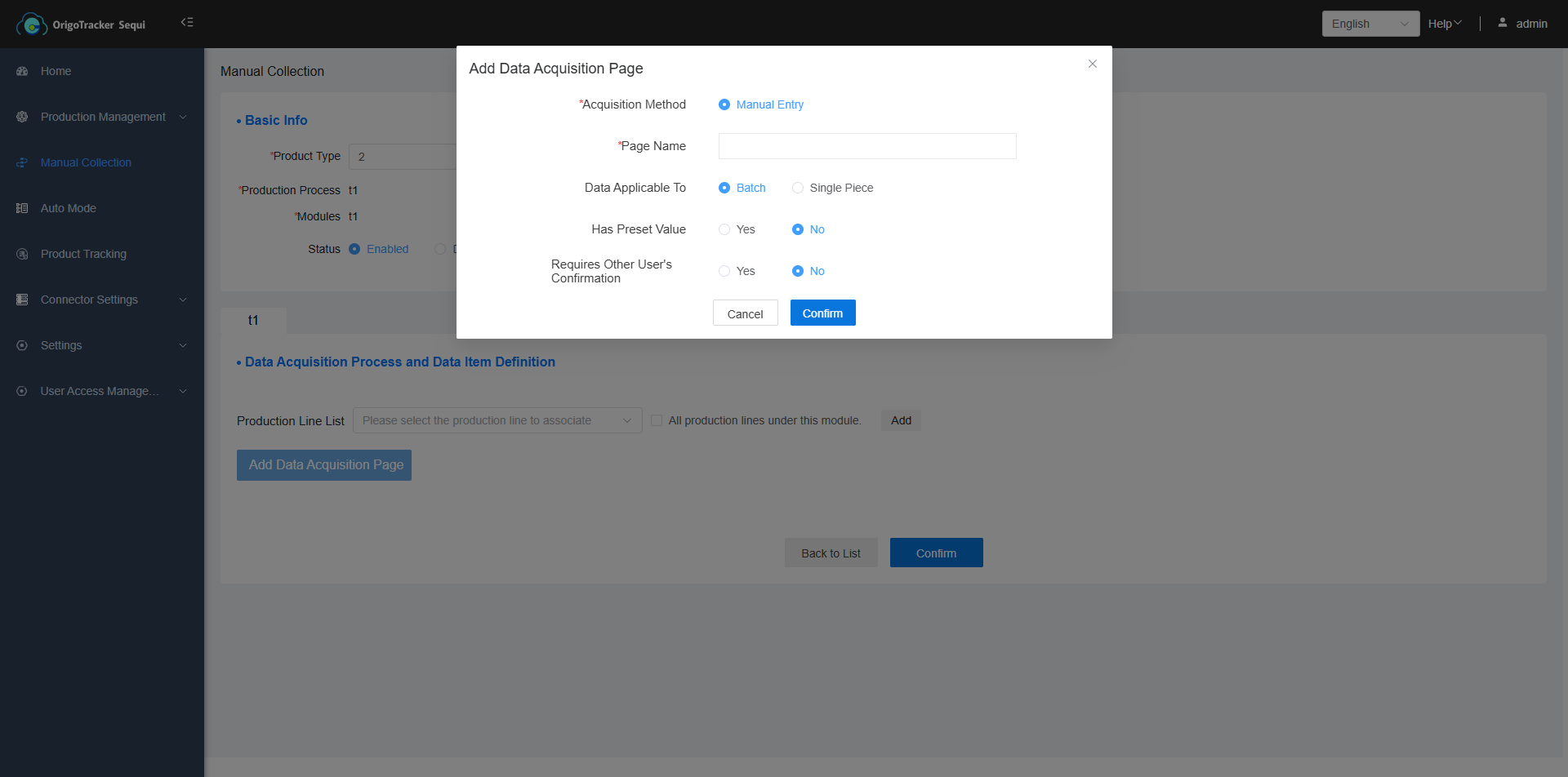
| Field | Description |
|---|---|
| Manual Data Collection | Indicates that this page is for manual data entry. |
| Step Name | The name of the page, which will be displayed on the pad |
| Data Applies To | Whether the data collected on this page is associated with a batch (batch number) or individual units (serial number). |
| Has Default Value | Whether the data item has default and deviation values (if checked "Yes," input fields for default and deviation values will appear in the data item settings). |
| Requires User Confirmation | Whether a second operator is rquired to confirm the completion of data collection on this page. |
Note: One data collection page corresponds to one page on the app runnning on pad.
3. Define Data Item on the page
After defining the collection page, you can start define data items.
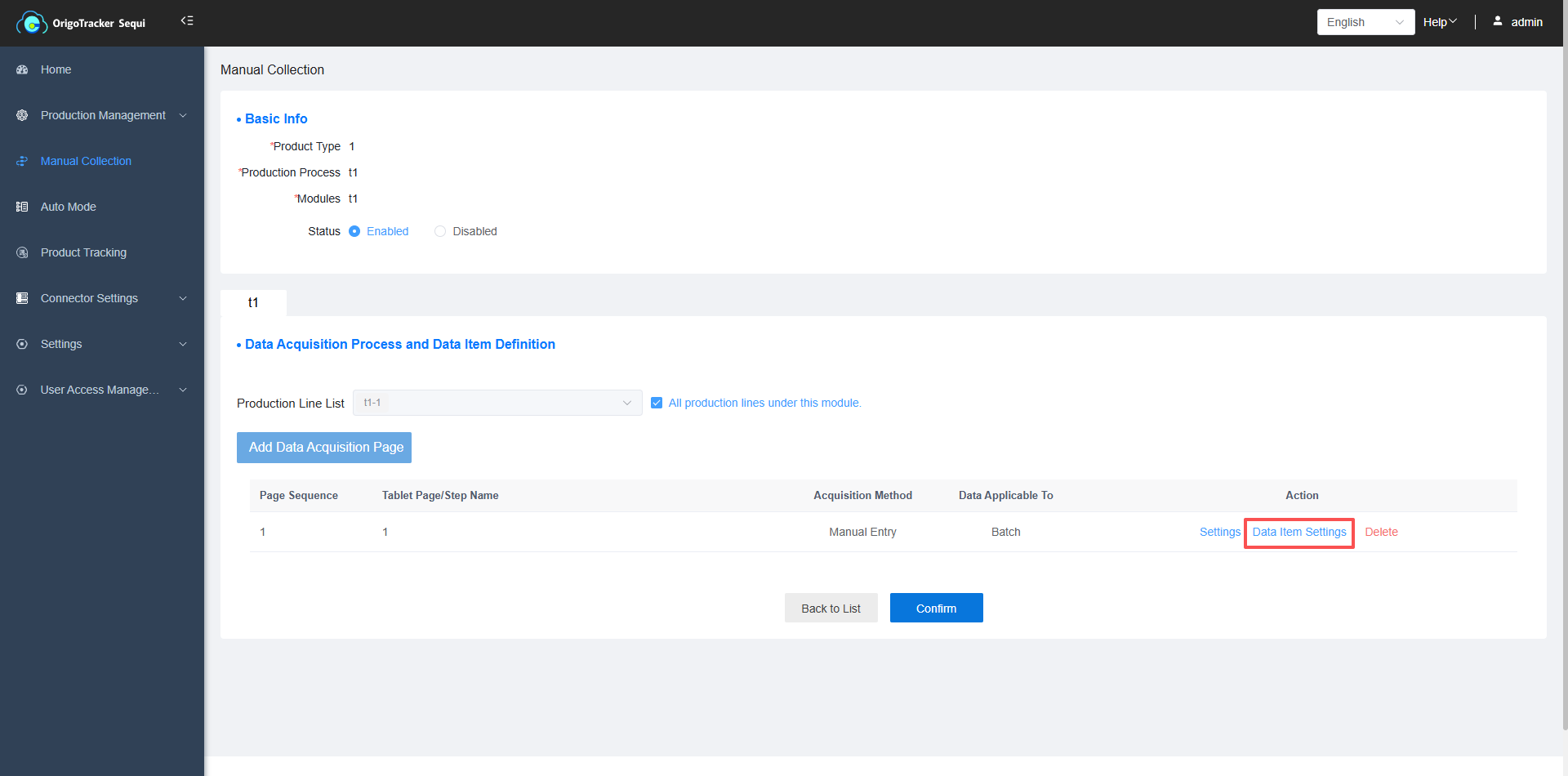
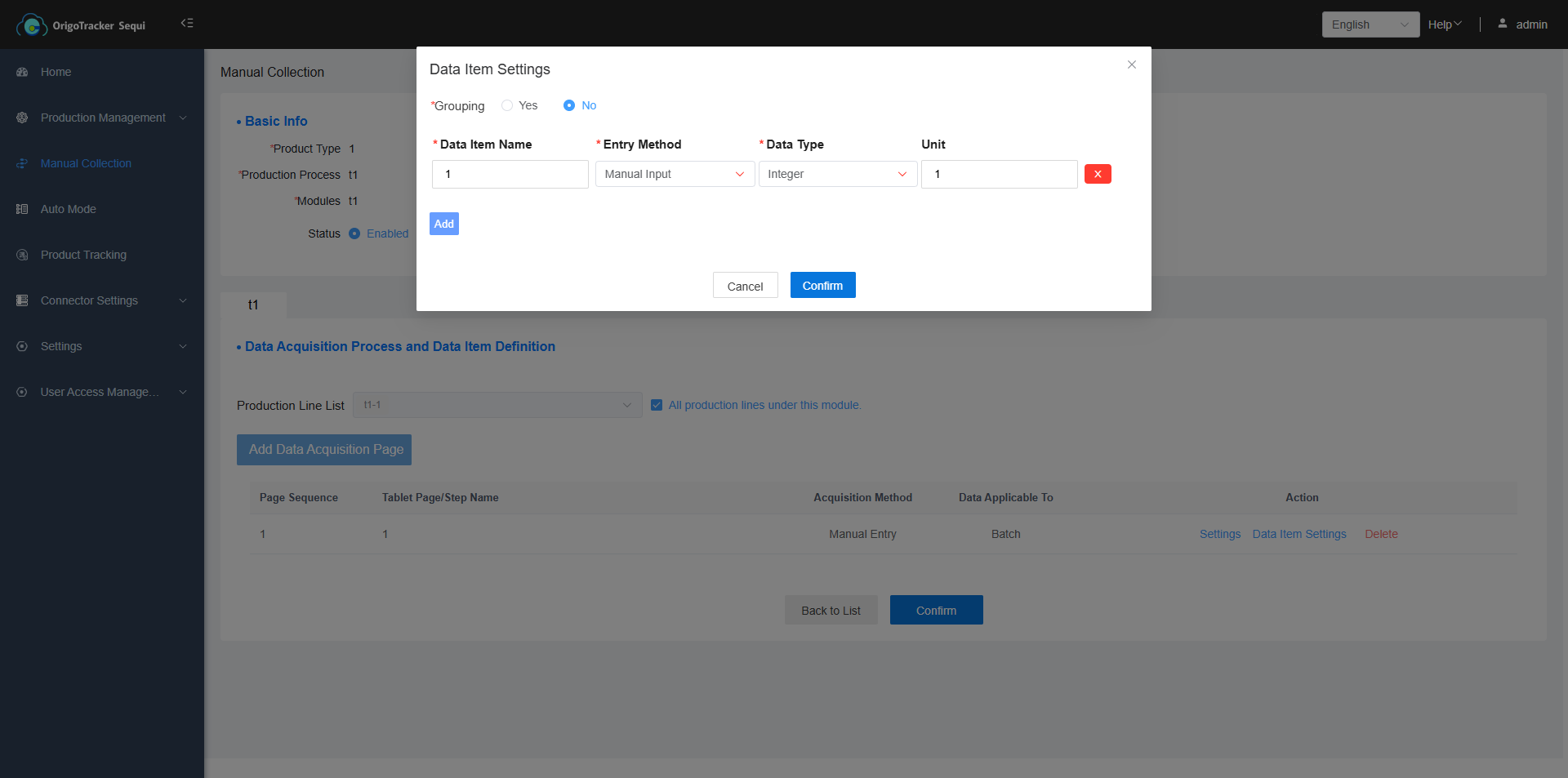
| Field | Description |
|---|---|
| Data Item Name | The name of the data collection item, e.g., Temperature. |
| Entry Method | The method for PAD operators to enter data. |
| Data Type | Only applicable when the entry method is "Manual Entry." It restricts the values that PAD user can input in the field. |
| Default Value | The preset value for this data item, which will be displayed on the PAD after entry (visible only if "Require Default Value" is checked in the previous step). |
| Unit | The unit of measurement for the data collected in this data item. |
Entry Method: including the following:
- Manual Entry: Corresponds to an input field on the PAD.
- Dropdown Selection: Corresponds to a dropdown selection box on the PAD.
- Scan Entry: Corresponds to a scanning function on the PAD.
- Swipe Card Entry for User Identity: Corresponds to a card-swipe function on the PAD.
- Yes/No Selection: Corresponds to a yes/no selection option on the PAD.
Group: Functions as a sub-page within the main page, affecting the display on the PAD and the presentation of traceability data. If grouping is required, the pop-up window will be displayed as follows.
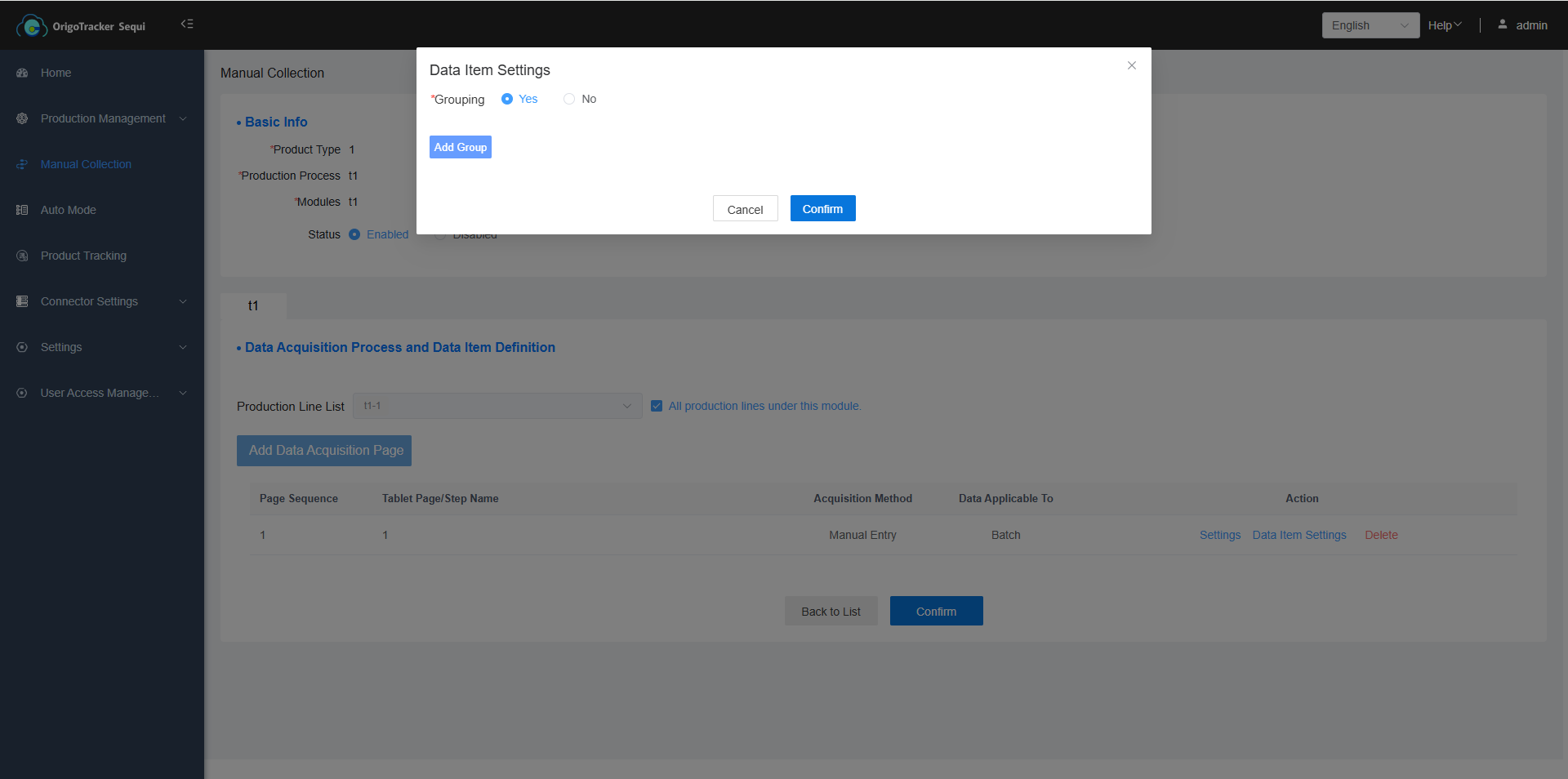
Add Group: Add a data collection group (corresponding to a subpage on the PAD).
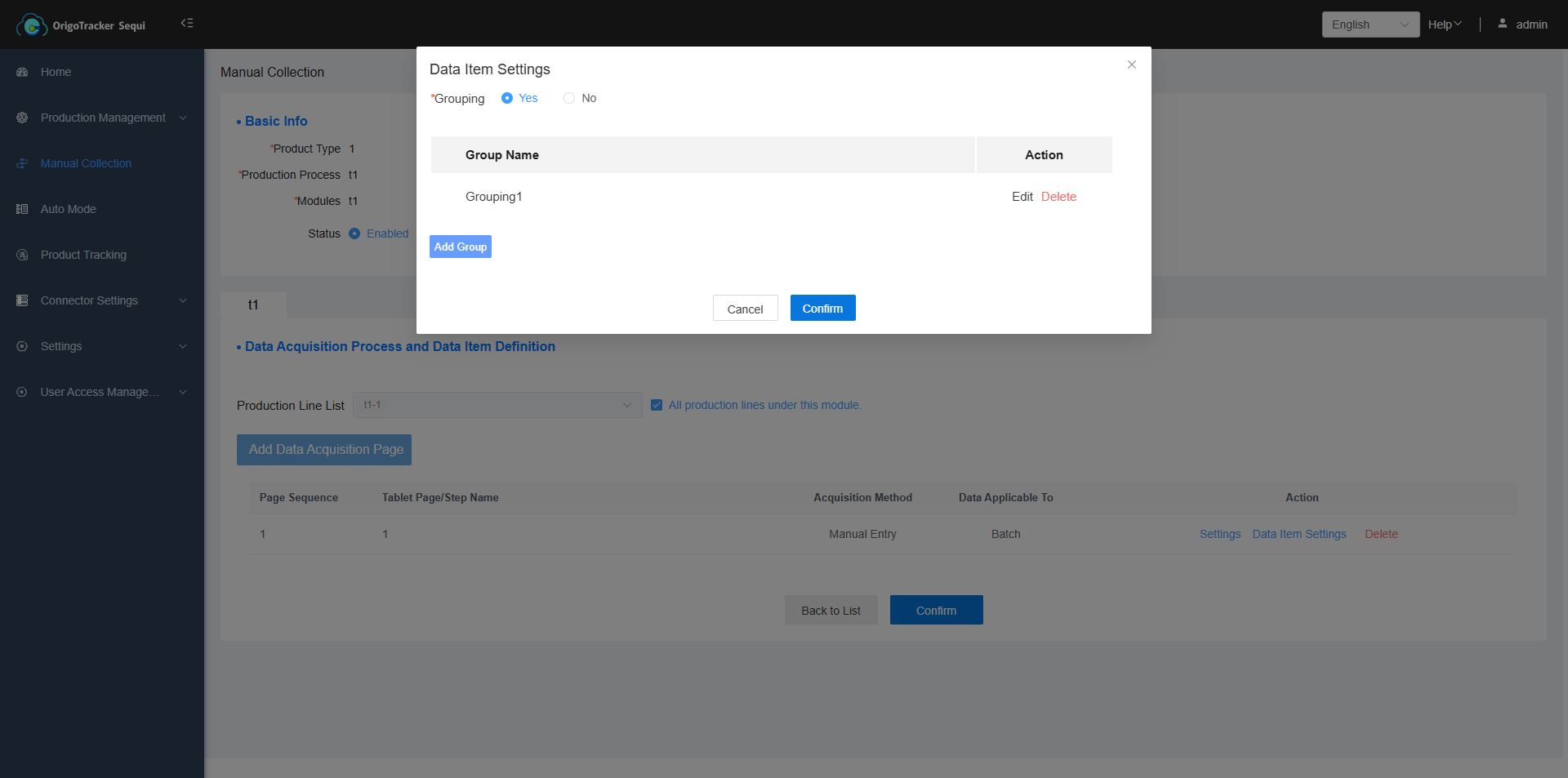
Click Edit to add data item definitions on the subpage.
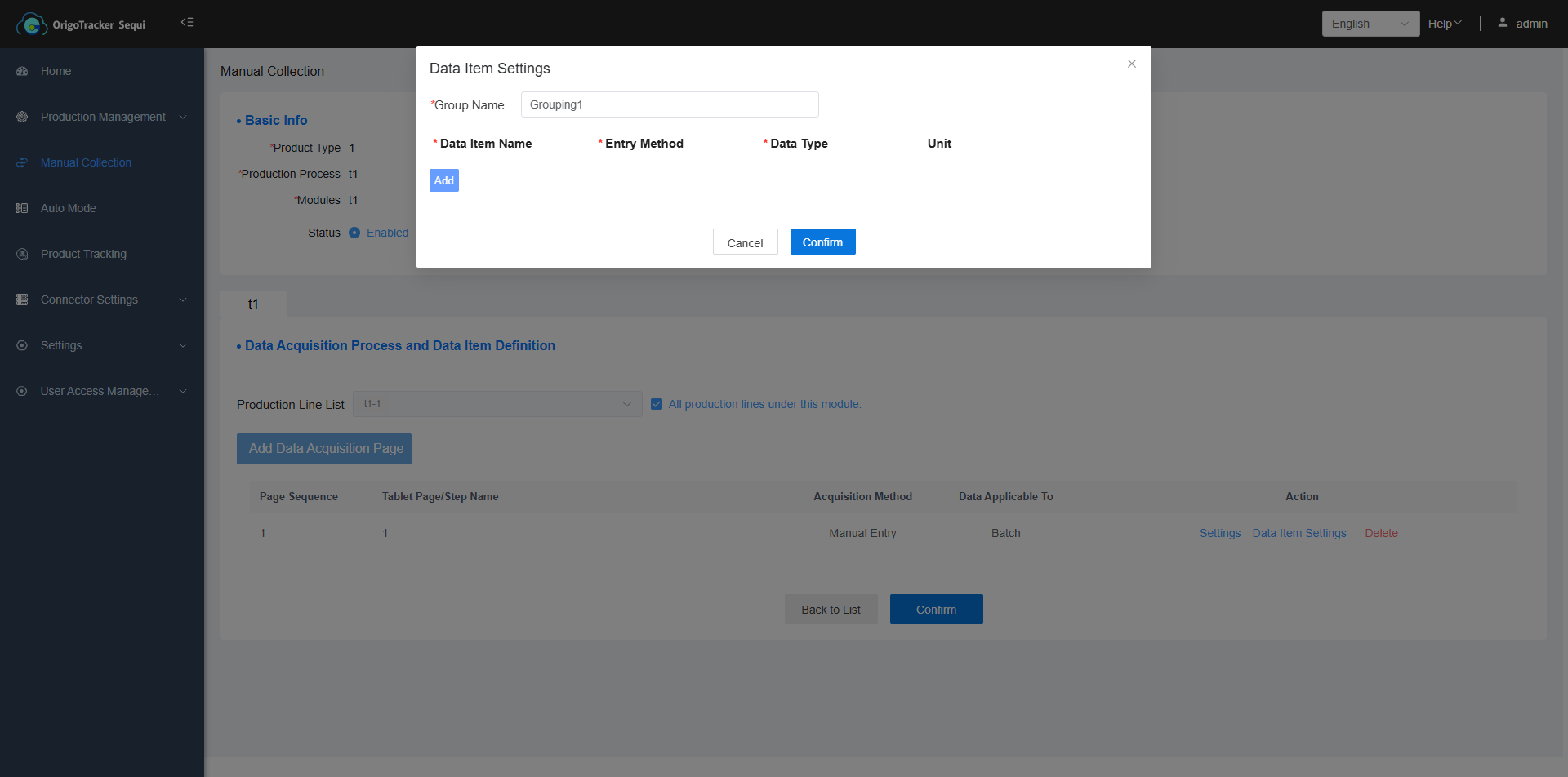
| Field | Description |
|---|---|
| Group Name | The name of the subpage. |
The meanings of the other settings are same as those in the non-grouped configuration.